
How it works
The Google Cloud Storage connector pulls in all documents from the specified GCS bucket. It supports various file formats including PDF, DOC, DOCX, TXT, and more. Documents are updated every 1 day.Setting up
Setup runs through four steps, shown in the left rail of the connector page: Credential, Connector, Space, and Advanced. Before you connect in the Admin panel, create a Google Cloud service account with read access to your bucket (see Authorization below).Authorization
Create a dedicated service account and download a JSON key. UtopikAI uses the GCS Access Key ID and GCS Secret Access Key from that key when you create a Google Storage credential.- Log into your Google Cloud Console.
- Navigate to IAM & Admin → Service Accounts.
- Click Create Service Account.
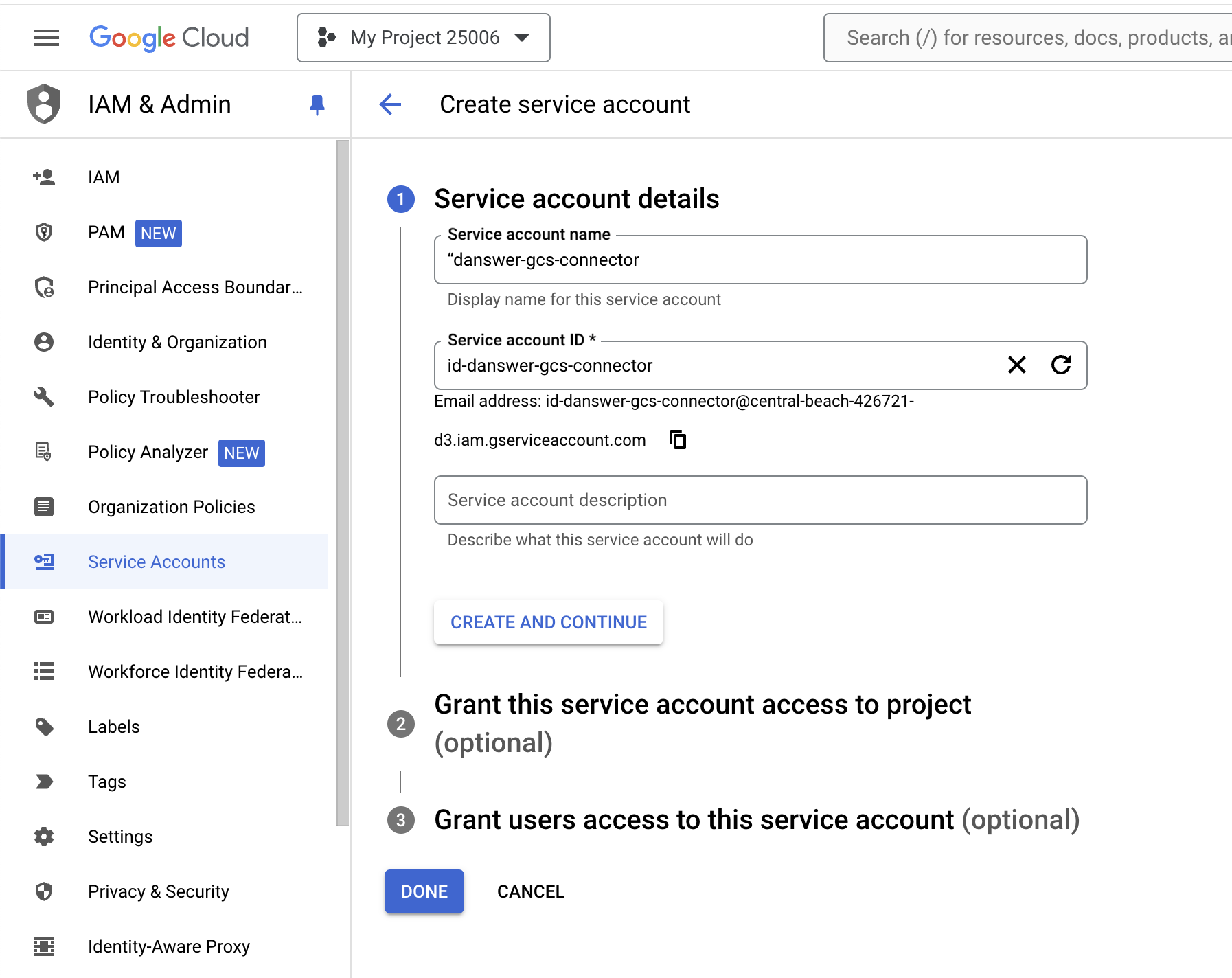
- Set a name for the new service account (for example
utopikai-gcs-connector) and click Create and Continue. - For the role, select Storage Object Viewer or another appropriately permissive role and click Continue.
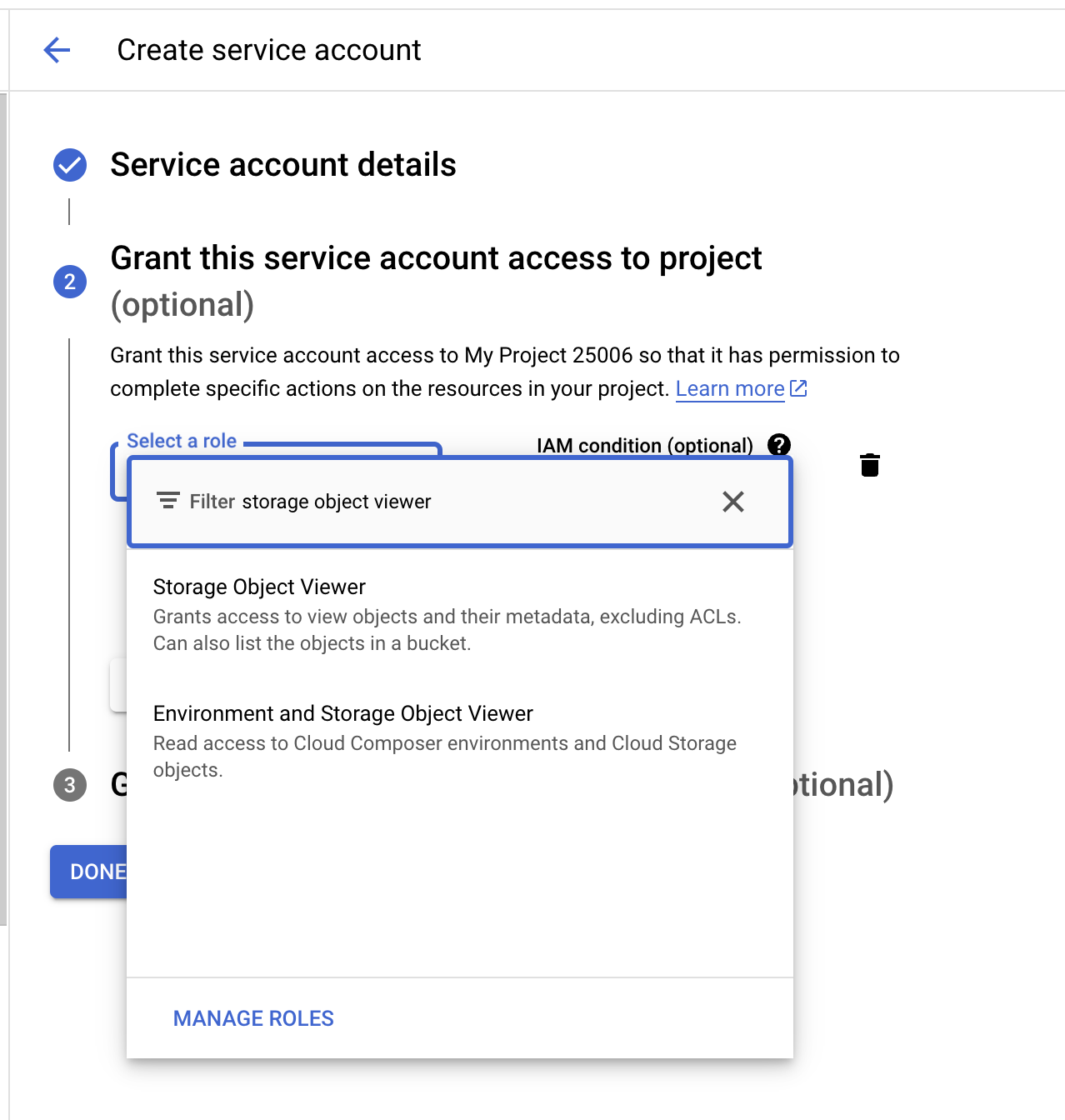
- Click Done to finish creating the service account.
- On the Service Accounts page, open the account you just created.
- In the Keys section, click Add Key → Create new key.
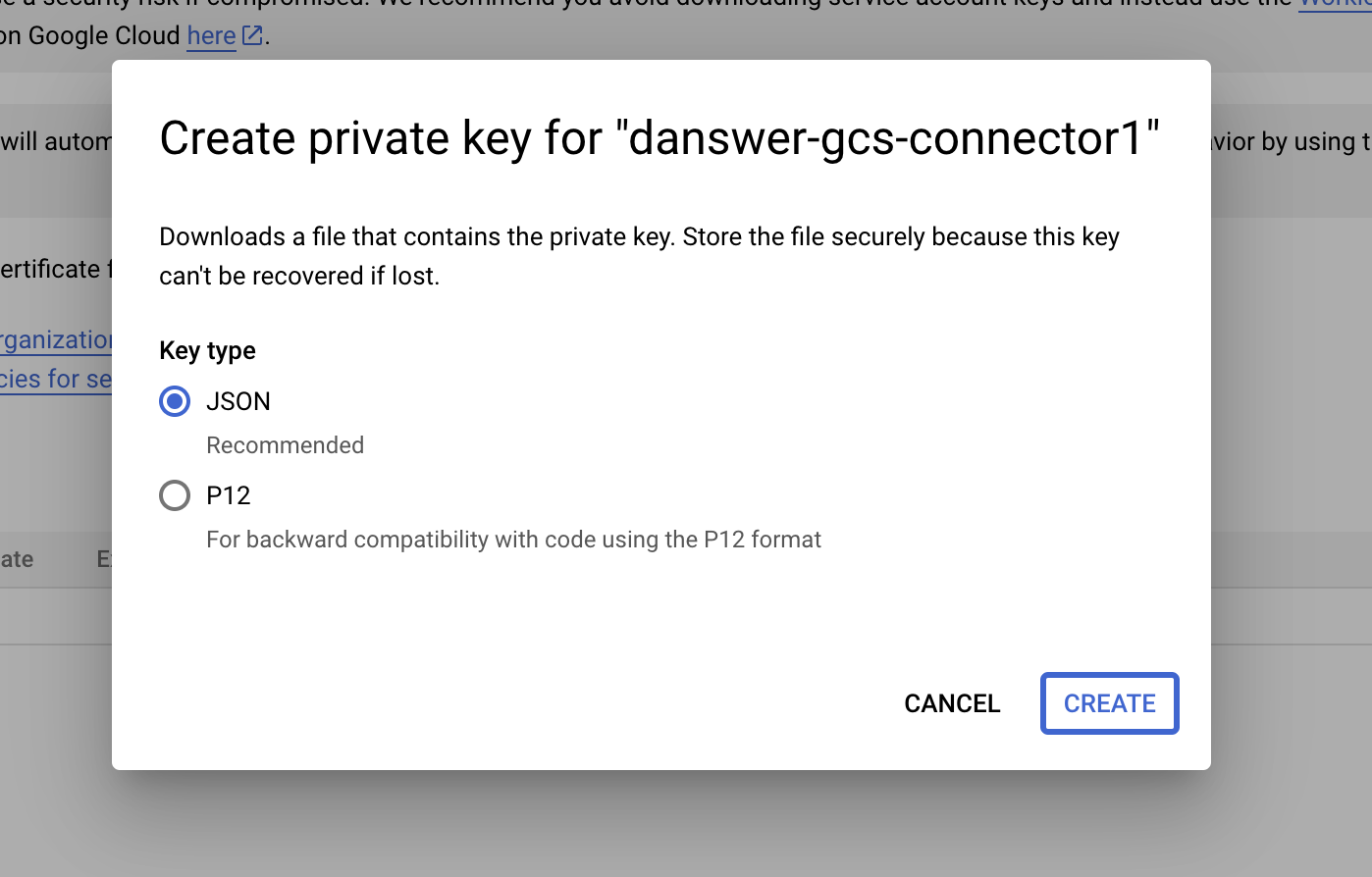
- Choose JSON as the key type and click Create.
- A JSON file downloads to your computer. Open it and note the following values:
client_id— use this as your GCS Access Key IDprivate_key— use this as your GCS Secret Access Key
Add the connector
- Open Admin → Connectors → Add Connector.
- Under Storage, select Google Storage.
- Create or select a Google Storage credential (see below).
- Configure the bucket to index.
- Complete the remaining steps and save the connector to start indexing.
Step 1: Select Credential
- Open Admin from the profile menu, then go to Connectors → Add Connector.
- Under Storage, select Google Storage.
- In Step 1, select an existing credential from the list, or click Create New to add one.
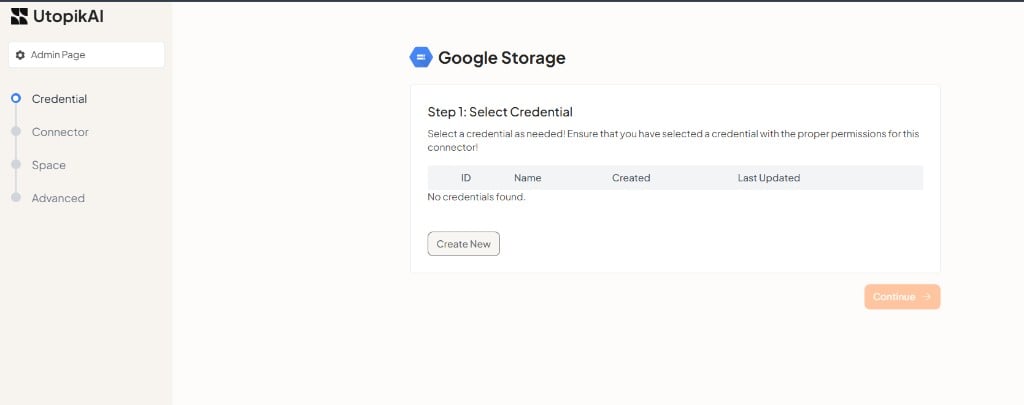
Ensure the credential you select has read access to the GCS bucket you plan to index. A credential without the required bucket permissions cannot index its contents.
Create a credential
Clicking Create New opens the Create Google Storage Credential modal: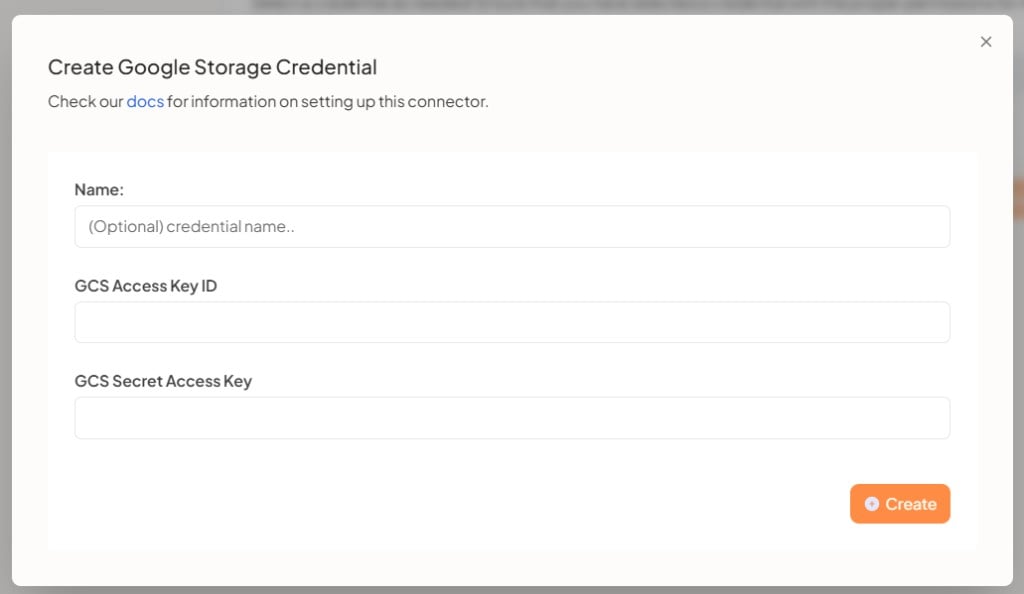
- Enter an optional Name to label the credential (for example
Production GCS). - Enter the GCS Access Key ID and GCS Secret Access Key from the service account JSON key you created above.
- Click Create to save the credential.
Step 2: Configure the connector
- Enter a Connector Name — a descriptive name for this connector.
- Specify the GCS bucket you want to make searchable.
- Click Continue.
Step 3: Select a space
Choose the space to index the documents into. This controls which space the connector’s indexed content belongs to. Use the search field to filter the list if you have many spaces, then click Continue.Step 4: Advanced Configuration
The final step controls how often UtopikAI syncs with your GCS bucket and how far back it indexes. The defaults work for most setups.
Entering
0 or leaving Refresh Frequency blank means UtopikAI will never pull new documents for this connector.
Entering 0 or leaving Prune Frequency blank disables pruning for this connector. Pruning checks every document against the source, so lower values (more frequent pruning) increase load — raise the frequency with care on large buckets.
Use Reset to restore the default values.
When you are done, click Create Connector to save the connector and begin indexing your GCS files. You can return to any earlier step using the Previous button or the step list in the left rail.