
Users is only available for Workspace Admin.
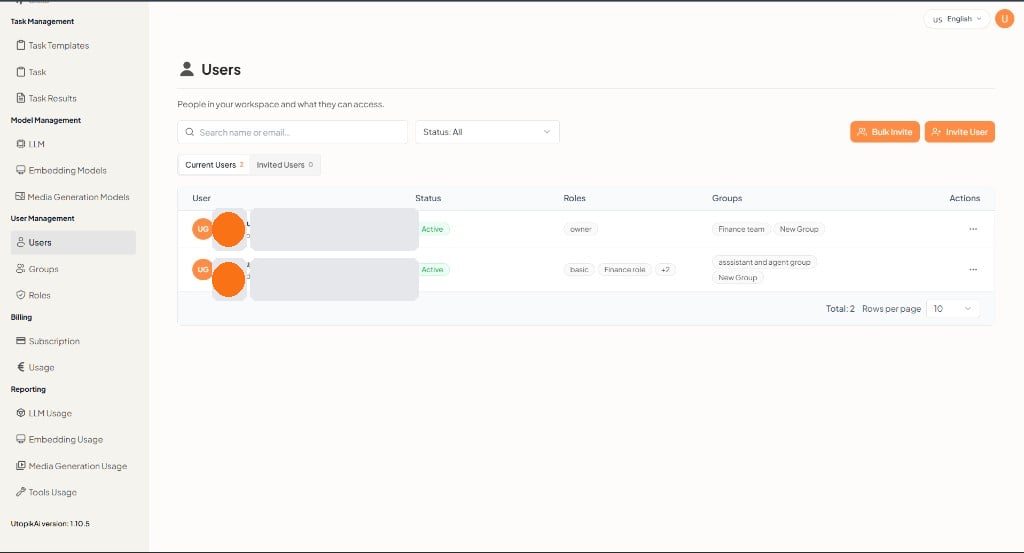
What you can do
Users table
The footer shows the total number of rows and the rows-per-page setting.
Invite a team member
Click Invite User to add one person. The flow has three steps: User Details, User Access, and Summary.1. User Details
Enter who you are inviting, then Continue.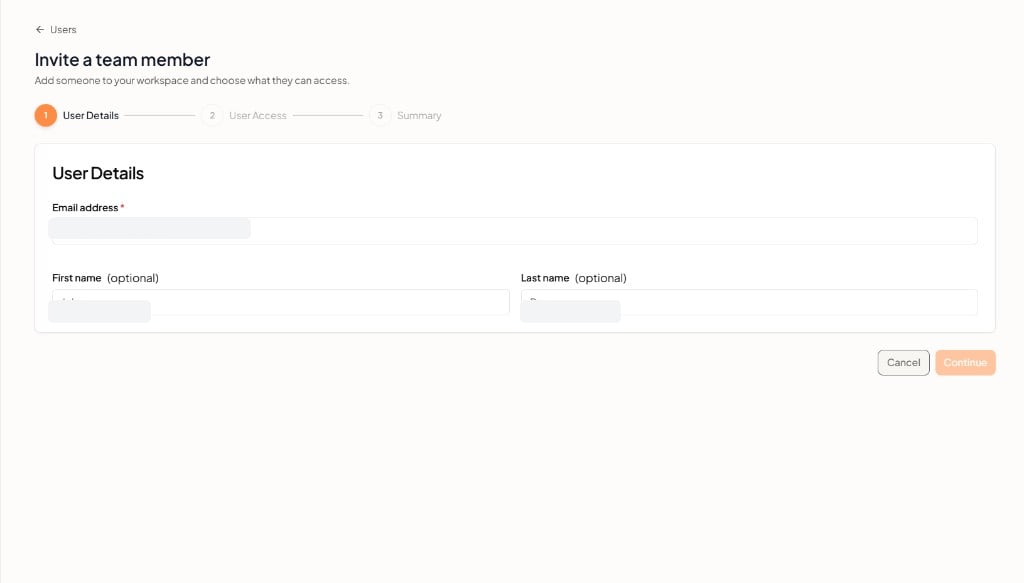
Click Cancel to close without sending an invite.
2. User Access
Assign roles from your workspace catalog, and add groups if needed. Then Continue.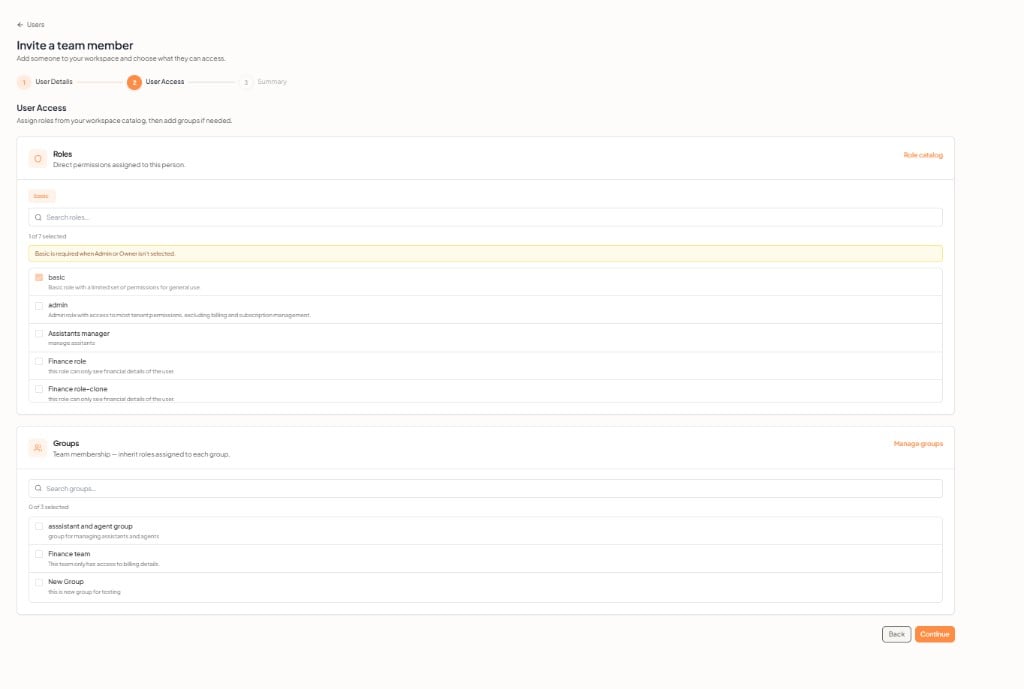
A basic role is required when Admin or Owner is not selected.
Use Role catalog or Manage groups if you need to create or edit them first. See Roles and Groups.
3. Summary
Review the details, then Send invite. Roles and groups apply when the invite is accepted.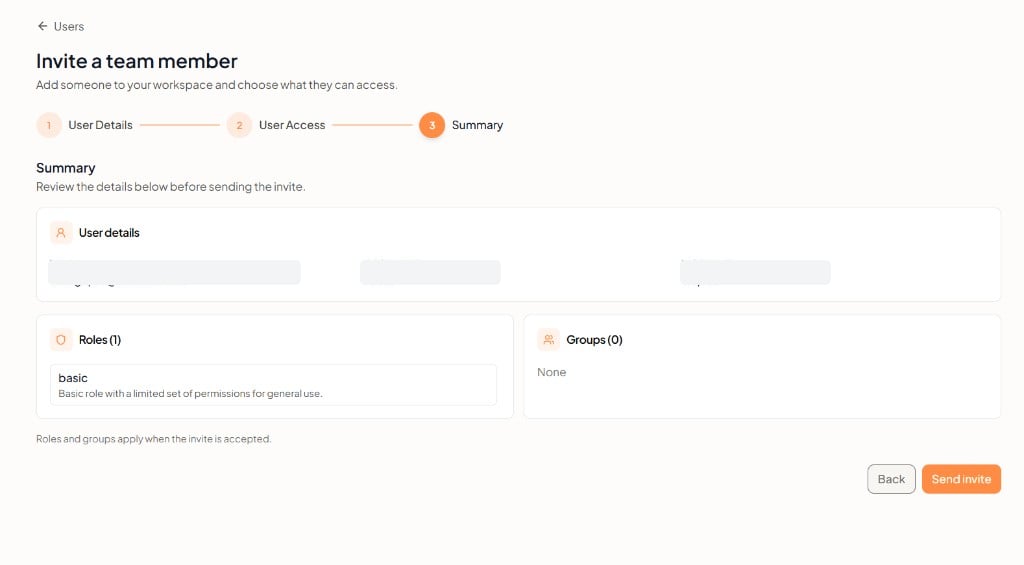
- User details — email, first name, and last name
- Roles — roles selected in the previous step
- Groups — groups selected in the previous step, or None