MCP (Model Context Protocol) servers link UtopikAI to systems you already use. Administrators add servers in AdminMCP Servers. Attach a server to a specific agent when you create or edit that agent. Each agent has its own MCP server list. Assistants do not share an agent’s MCP servers.

MCP Servers list

Open Admin from the profile menu, then go to MCP Servers. MCP Servers list
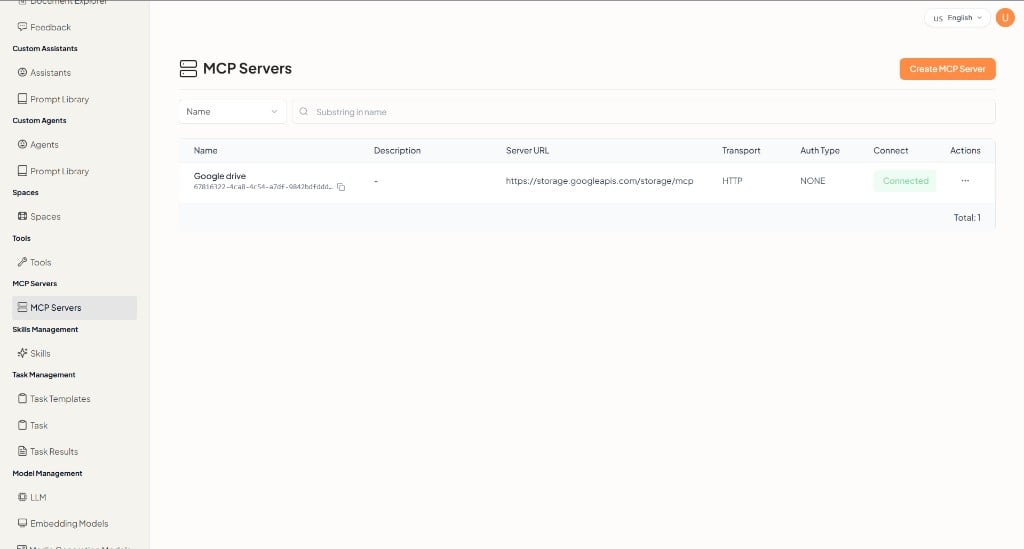
  • Create MCP Server — Start the setup wizard.
  • Search by Name using Substring in name.

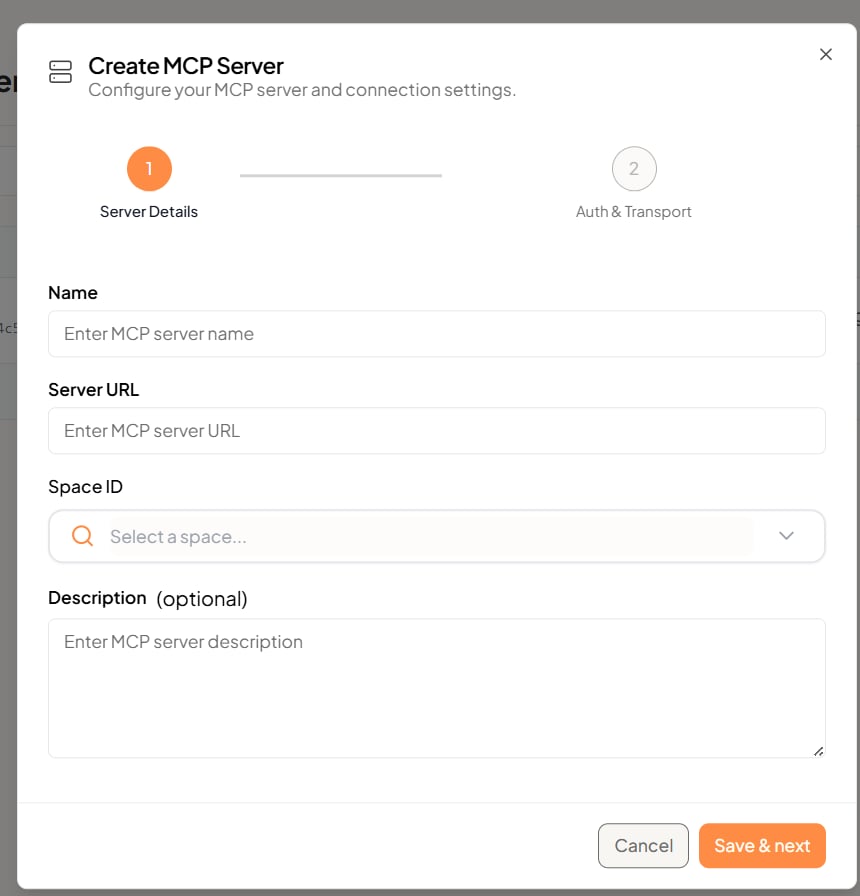
Create MCP Server

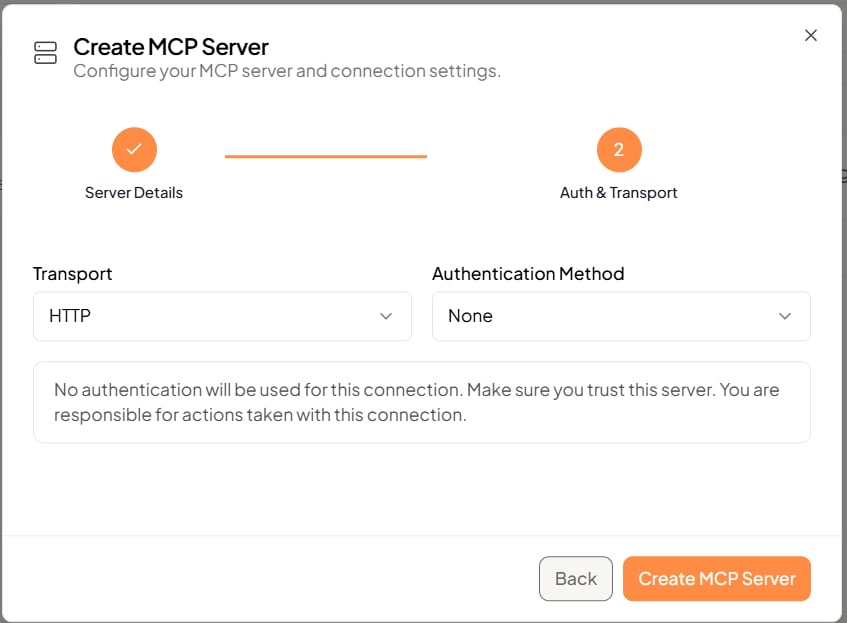
Setup has two steps: Server Details, then Auth & Transport.

1. Server Details

  1. Click Create MCP Server.
  2. Enter a Name.
  3. Enter the Server URL.
  4. Select a space.
  5. Optionally enter a Description.
  6. Click Save & next.
Create MCP Server — Server Details

2. Auth & Transport

  1. Choose a Transport (for example HTTP).
  2. Choose an Authentication Method.
  3. Click Create MCP Server.
If authentication is None, no credentials are sent. Only use that when you trust the server. Create MCP Server — Auth & Transport Use Back to change server details. Use Cancel to close without creating. After the server is created and connected, add it to an agent with + Add MCP Server in the agent setup wizard.