- Text to Image — Describe the image in a prompt.
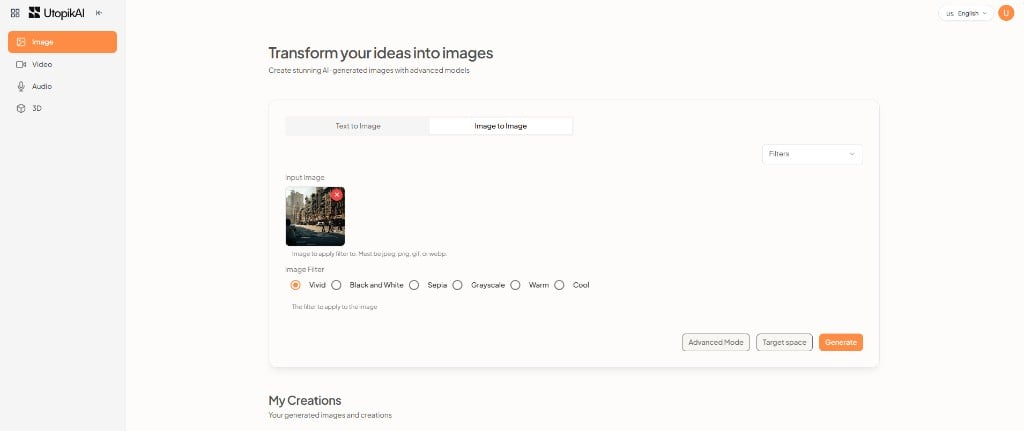
- Image to Image — Start from an existing image and apply a filter or transformation.
Image catalog
For pricing, see the image models page.Image to Image
- Select the Image to Image tab.
- Upload an Input Image (JPEG, PNG, GIF, or WebP).
- Choose a model. Specialized options include Filters, Cartoonify, Restore Image, Professional Headshot, and Bria Remove Background.
- If you use Filters, pick a look such as Vivid, Black and White, Sepia, Grayscale, Warm, or Cool.
- Click Generate.