Authorization
- Create a Google Cloud Project
-
Enable the Google Drive API
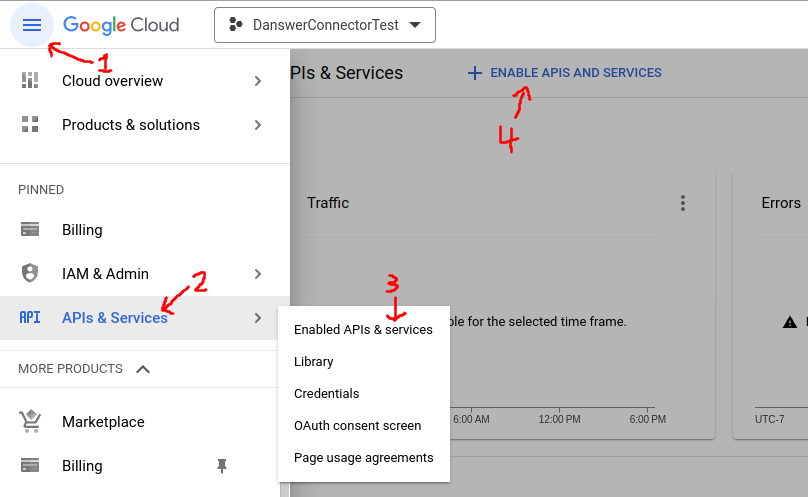
- On the left panel, open APIs & services
- Go to Enabled APIs and services
- On the top click +ENABLE APIS AND SERVICES
- Search for Google Drive API and click ENABLE
- Alternatively visit this link, select your project and enable the Google Drive API
-
Enable the Admin SDK API
- Click on +ENABLE APIS AND SERVICES again.
- Search for Admin SDK API and click ENABLE
- Alternatively visit this link, select your project and enable the Admin SDK API
-
Enable the Google Sheets API
- Click on +ENABLE APIS AND SERVICES again.
- Search for Google Sheets API and click ENABLE
- Alternatively visit this link, select your project and enable the Google Sheets API
-
Enable the Google Docs API
- Click on +ENABLE APIS AND SERVICES again.
- Search for Google Docs API and click ENABLE
- Alternatively visit this link, select your project and enable the Google Docs API
-
Set up the OAuth consent screen
- Under APIs & services, select the OAuth consent screen tab
- If you don’t have a Google Organization select External for User Type
- Call the app UtopikAI (or whatever you want)
- For the required emails, use any email of your choice or
founders@UtopikAI.appif you wish for the UtopikAI team to help handle issues. - Click SAVE AND CONTINUE
-
Set up Scopes
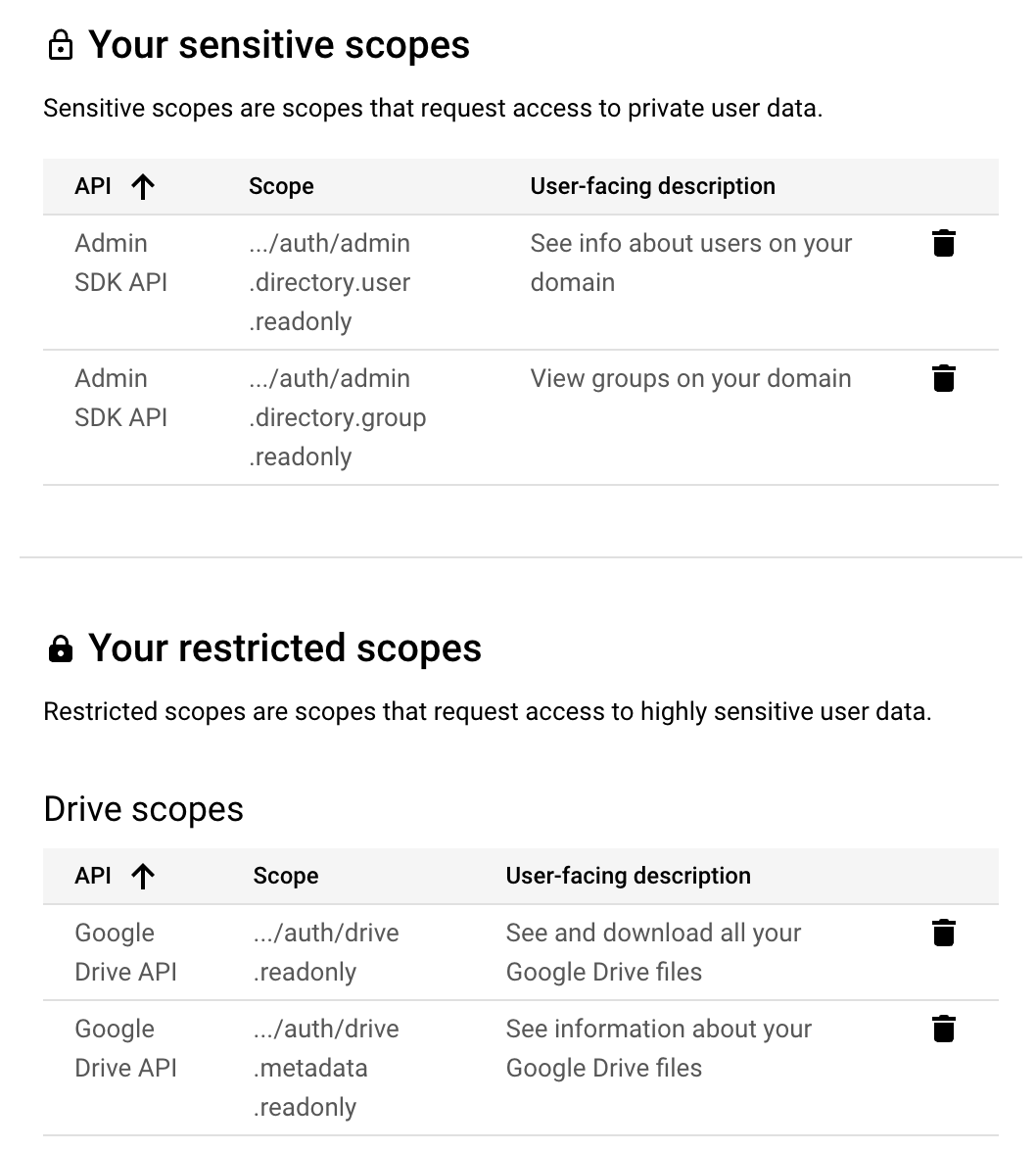
- Add the scope
.../auth/drive.readonlyforGoogle Drive API - Add the scope
.../auth/drive.metadata.readonlyforGoogle Drive API - Add the scope
.../auth/admin.directory.user.readonlyforAdmin SDK API - Add the scope
.../auth/admin.directory.group.readonlyforAdmin SDK API
- Add the scope
You should see something like this:
-
Set up Test users
- This is only applicable for users without a Google Organization.
- Typically for a company, UtopikAI would be set up as an internal app so this step would not apply.
- Add at least one test user email. Only the email accounts added here will be allowed to run the OAuth flow to index new documents.
- Click SAVE AND CONTINUE, review the changes and click BACK TO DASHBOARD
- This is only applicable for users without a Google Organization.
-
Create Credentials
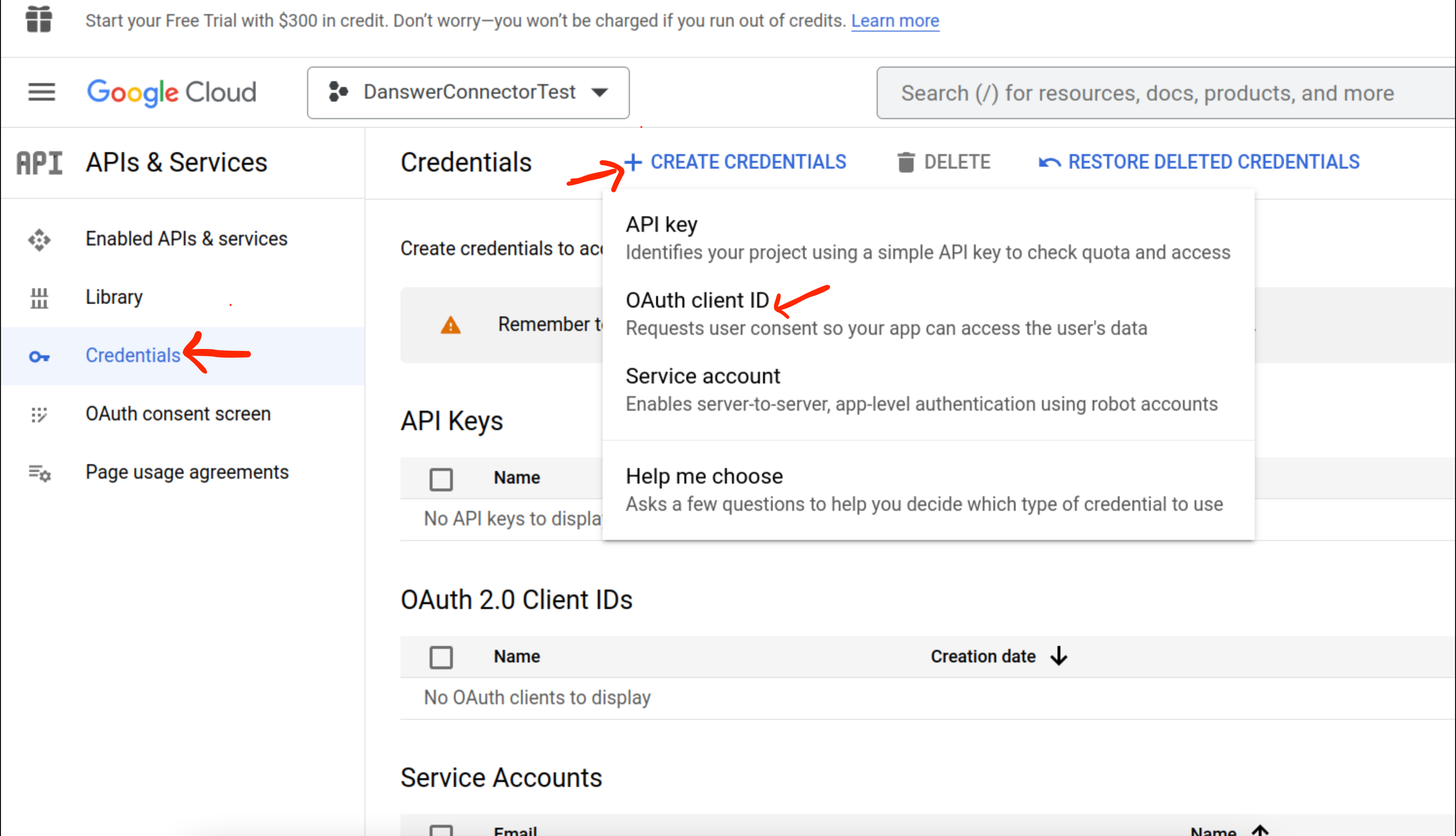
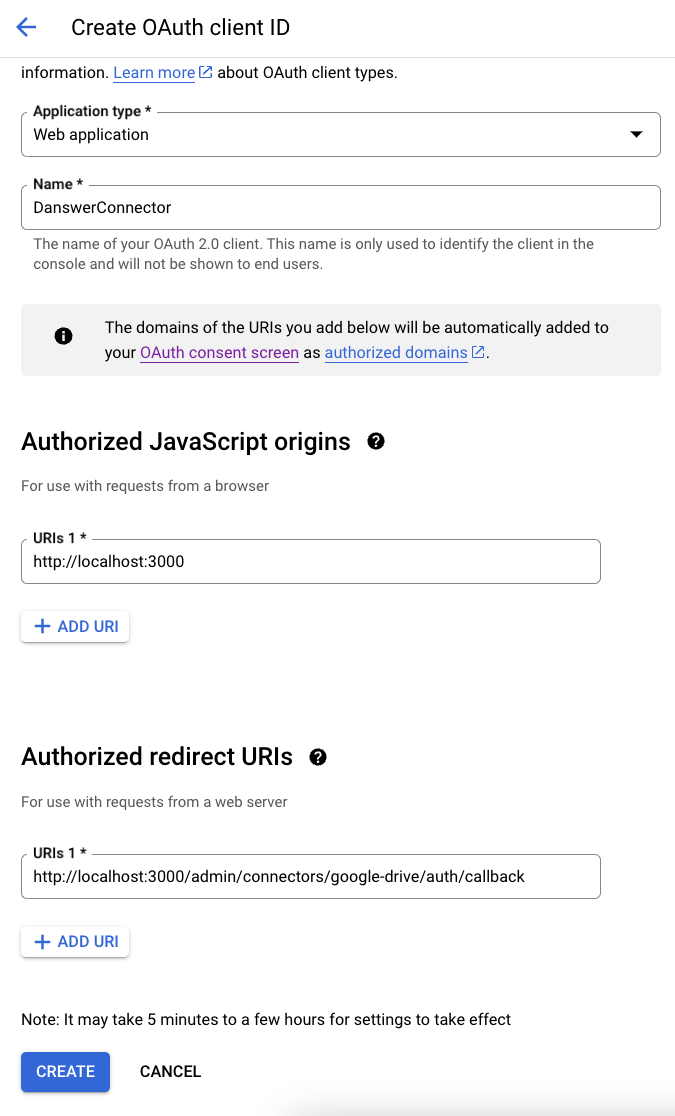
- Go to the Credentials tab and select + CREATE CREDENTIALS -> OAuth client ID
- Choose Web application and give it some name like
UtopikAIConnector - Add a Authorized JavaScript origins for
http://localhost:3000(orhttps://<INTERNAL_DEPLOYMENT_URL>if you have setup UtopikAI for production use) - Add a Authorized redirect URIs for
http://localhost:3000/admin/connectors/google-drive/auth/callback(orhttps://<INTERNAL_DEPLOYMENT_URL>/admin/connectors/google-drive/auth/callbackif you have setup UtopikAI for production use)
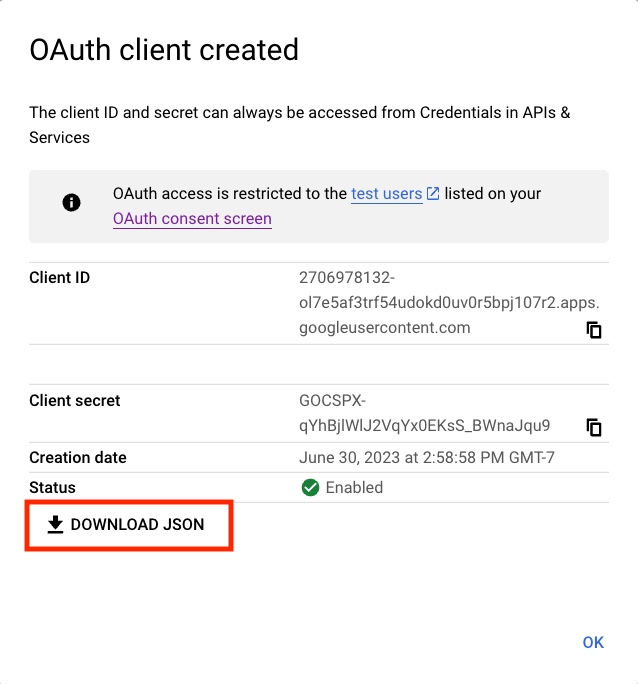
- Click create and on the right hand side next to Client secret, there is an option to download the credentials as a JSON. Download the JSON for use in the next step.