> ## Documentation Index
> Fetch the complete documentation index at: https://docs.utopikai.com/llms.txt
> Use this file to discover all available pages before exploring further.
# Editor
> Build a workflow on the canvas
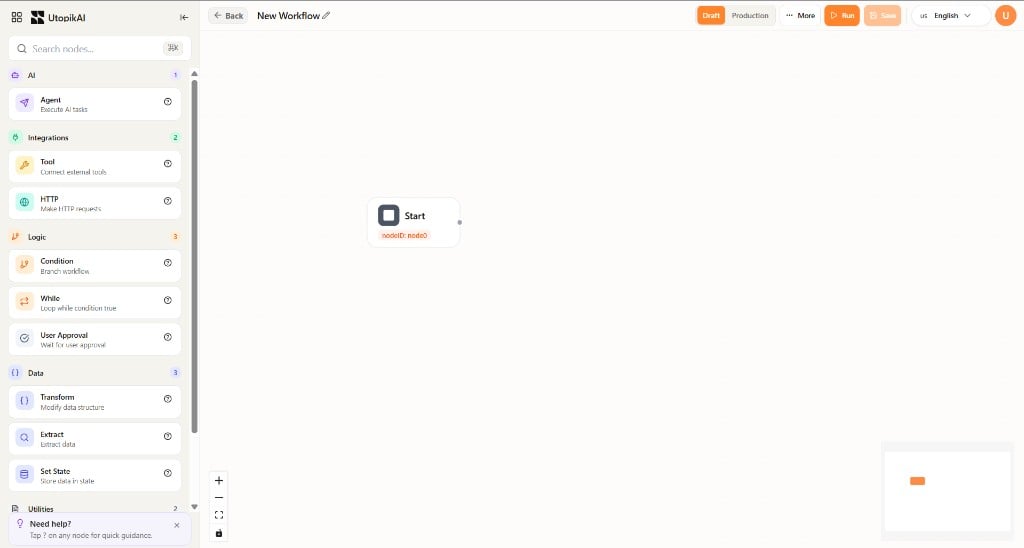
Open a workflow to use the visual editor. Every flow starts with a **Start** node. Click **Start** to choose a **Trigger type**. Drag other nodes from the left library onto the canvas and connect them.
 ## Start trigger type
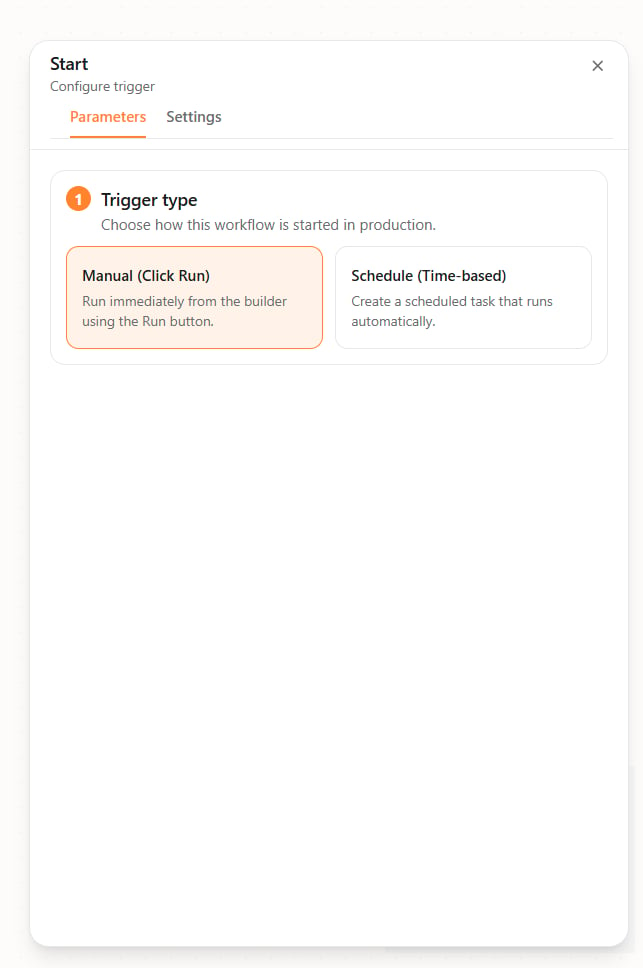
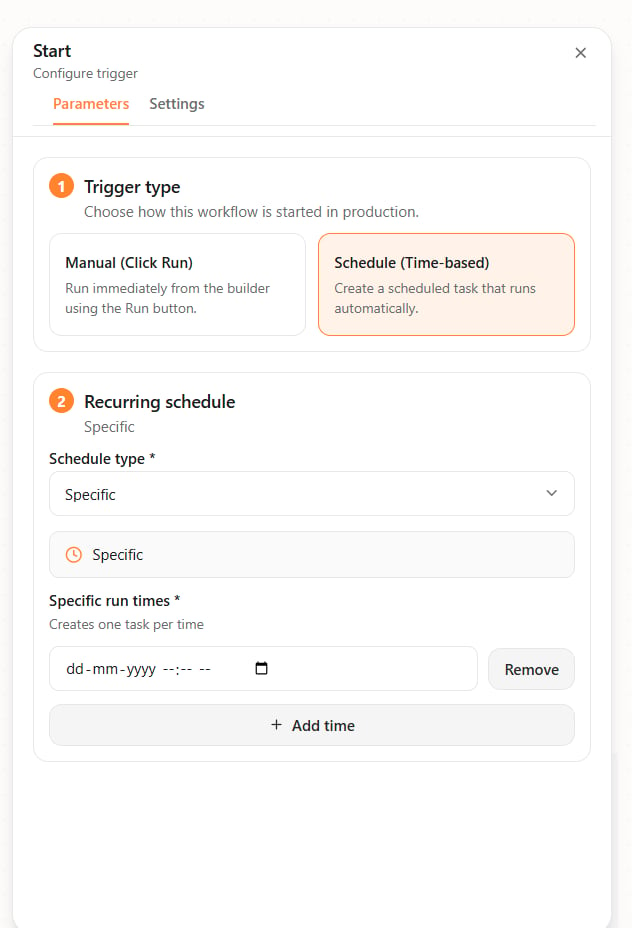
Select the **Start** node to open **Start** → **Configure trigger**. The **Parameters** tab has two numbered steps.
### 1. Trigger type
Choose how this workflow is started in production:
| Option | What it does |
| ------------------------- | ---------------------------------------------------------- |
| **Manual (Click Run)** | Run immediately from the builder using the **Run** button. |
| **Schedule (Time-based)** | Create a scheduled task that runs automatically. |
## Start trigger type
Select the **Start** node to open **Start** → **Configure trigger**. The **Parameters** tab has two numbered steps.
### 1. Trigger type
Choose how this workflow is started in production:
| Option | What it does |
| ------------------------- | ---------------------------------------------------------- |
| **Manual (Click Run)** | Run immediately from the builder using the **Run** button. |
| **Schedule (Time-based)** | Create a scheduled task that runs automatically. |
 ### 2. Recurring schedule
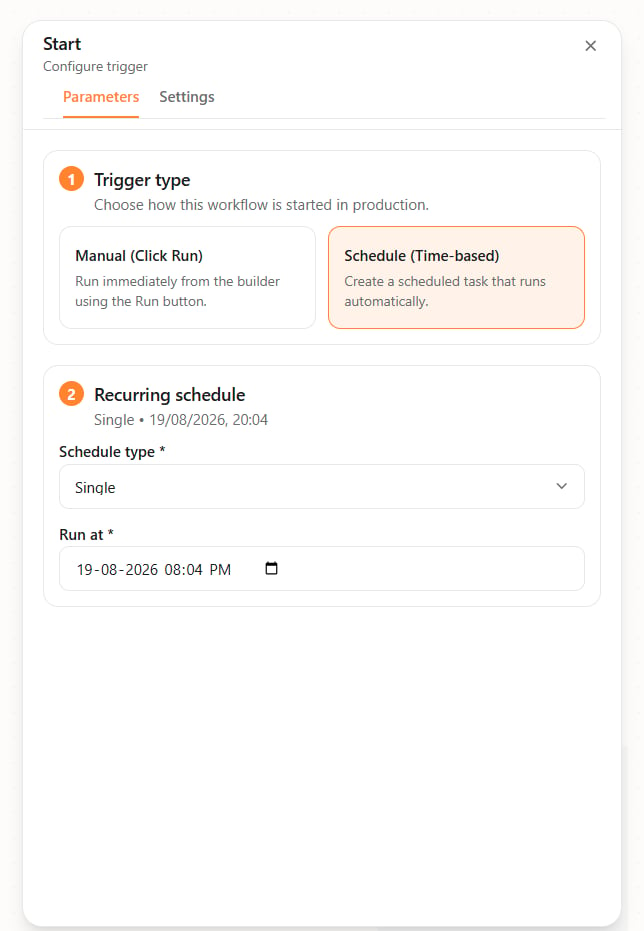
This step appears when **Schedule (Time-based)** is selected. Set **Schedule type** first.
#### Single
One run at a chosen date and time.
* **Schedule type** — **Single**
* **Run at** — Date and time
### 2. Recurring schedule
This step appears when **Schedule (Time-based)** is selected. Set **Schedule type** first.
#### Single
One run at a chosen date and time.
* **Schedule type** — **Single**
* **Run at** — Date and time
 #### Recurring
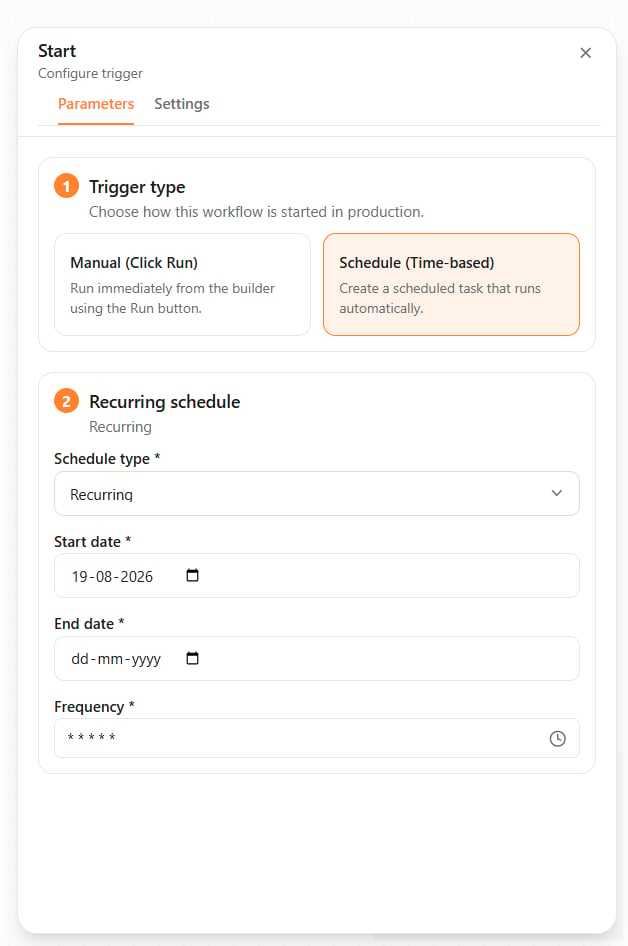
Repeats on a frequency between a start date and an optional end date.
* **Schedule type** — **Recurring**
* **Start date** — First day the schedule is active
* **End date** — Optional last day
* **Frequency** — How often the workflow repeats
#### Recurring
Repeats on a frequency between a start date and an optional end date.
* **Schedule type** — **Recurring**
* **Start date** — First day the schedule is active
* **End date** — Optional last day
* **Frequency** — How often the workflow repeats
 #### Specific
A list of exact run times. Add as many as you need.
* **Schedule type** — **Specific**
* **Specific run times** — Date and time for each run
* **+ Add time** — Add another run time
* **Remove** — Delete a run time
#### Specific
A list of exact run times. Add as many as you need.
* **Schedule type** — **Specific**
* **Specific run times** — Date and time for each run
* **+ Add time** — Add another run time
* **Remove** — Delete a run time
 After you configure the trigger, connect **Start** to the first step in the flow.
## Top bar
* **Back** — Return to [Your Workflows](/workflows/overview).
* **Name** — Edit the workflow name.
* **Draft** / **Production** — Draft is for building and testing. Production is the live version.
* **More** — Additional actions.
* **Run** — Execute the workflow.
* **Save** — Save your changes.
## Node library
Search with **Search nodes...**. Nodes are grouped by category:
| Category | Nodes |
| ---------------- | ------------------------------------------------------------------------------------------------------------------------- |
| **AI** | [Agent](/workflows/agent) — run an agent as a step |
| **Integrations** | [Tool](/workflows/tool), [HTTP](/workflows/http) |
| **Logic** | [Condition](/workflows/logic#condition), [While](/workflows/logic#while), [User Approval](/workflows/logic#user-approval) |
| **Data** | Transform, Extract, Set State |
| **Utilities** | Note, End |
After you configure the trigger, connect **Start** to the first step in the flow.
## Top bar
* **Back** — Return to [Your Workflows](/workflows/overview).
* **Name** — Edit the workflow name.
* **Draft** / **Production** — Draft is for building and testing. Production is the live version.
* **More** — Additional actions.
* **Run** — Execute the workflow.
* **Save** — Save your changes.
## Node library
Search with **Search nodes...**. Nodes are grouped by category:
| Category | Nodes |
| ---------------- | ------------------------------------------------------------------------------------------------------------------------- |
| **AI** | [Agent](/workflows/agent) — run an agent as a step |
| **Integrations** | [Tool](/workflows/tool), [HTTP](/workflows/http) |
| **Logic** | [Condition](/workflows/logic#condition), [While](/workflows/logic#while), [User Approval](/workflows/logic#user-approval) |
| **Data** | Transform, Extract, Set State |
| **Utilities** | Note, End |
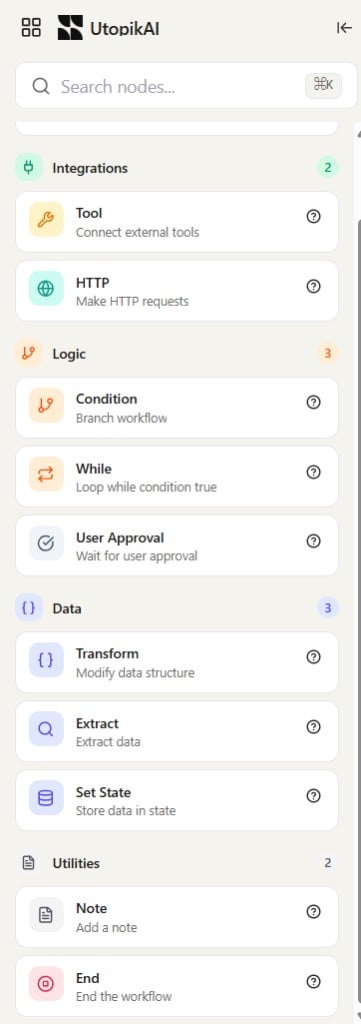 Tap **?** on a node in the library for a short description.
## Canvas
* Connect the output of one node to the input of the next.
* Use zoom, fit-to-view, and lock in the lower left.
* A minimap in the lower right helps you move around larger flows.
Select a node to open its settings on the right.
## Related documentation
* [Workflows Overview](/workflows/overview)
* [Agent](/workflows/agent)
* [Tool](/workflows/tool)
* [HTTP](/workflows/http)
* [Logic](/workflows/logic)
* [Tasks Overview](/tasks/overview)
Tap **?** on a node in the library for a short description.
## Canvas
* Connect the output of one node to the input of the next.
* Use zoom, fit-to-view, and lock in the lower left.
* A minimap in the lower right helps you move around larger flows.
Select a node to open its settings on the right.
## Related documentation
* [Workflows Overview](/workflows/overview)
* [Agent](/workflows/agent)
* [Tool](/workflows/tool)
* [HTTP](/workflows/http)
* [Logic](/workflows/logic)
* [Tasks Overview](/tasks/overview)