> ## Documentation Index
> Fetch the complete documentation index at: https://docs.utopikai.com/llms.txt
> Use this file to discover all available pages before exploring further.
# Tool Sharing
> Share tool credentials with Workspace members without exposing secrets
## Overview
When you attach a **tool** to an **assistant** or **agent**, that **tool** uses credentials (for example OAuth, API key, or custom credentials) to call the external service. **Tool sharing** lets other **Workspace members** in your **Workspace** **use** those credentials through the tool — for example when they chat with an assistant that has Google Drive attached — without letting them **view or edit** the underlying secrets.
Sharing is configured **per tool instance**, not per catalog entry. If you connect Google Drive twice (two instance IDs), each instance has its own sharing policy. Changing policy on one instance does not affect another.
**Assistants and agents** use the same sharing flow. Open **Step 3: Knowledge & Tools** → **Tools & Functions** on either an assistant or an agent to set policy on a linked instance.
## Where to configure sharing
Open the assistant or agent that uses the tool:
1. Go to **Step 3: Knowledge & Tools** → **Tools & Functions**.
2. Under **Application instances**, find the tool you want to share.
3. Click **Credential sharing policy** on that instance card.
Instances that still need authentication show **Update credentials**. Instances that are already linked (for example a default tool configured from your private-space account) show **Credentials linked** instead.
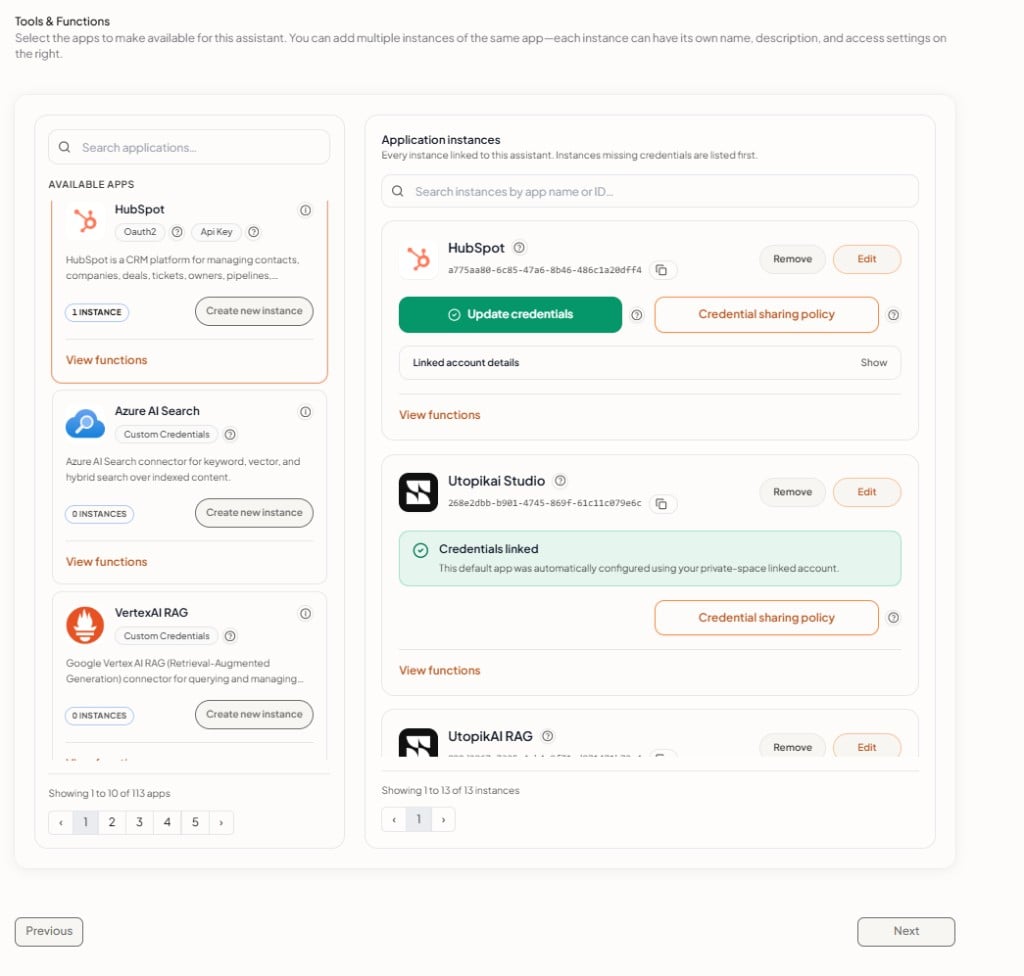 You can also connect a new tool from the catalog on the left and attach it to the assistant or agent before setting a sharing policy.
### Who can set the sharing policy
Typically, the **user who connected the tool instance** (or completed OAuth on behalf of the **Workspace**) can open **Credential sharing policy** and change who may use those credentials. **Workspace** administrators can also manage connected tools from **Admin** → **Tools** → **My Apps**.
If you cannot see **Credential sharing policy** on an instance, ask the person who connected it or your **Workspace** admin.
## Sharing policy
The **Credential sharing policy** dialog controls which **Workspace members** may use this tool's credentials. The title includes the tool name (for example **Credential sharing — HubSpot**).
You can also connect a new tool from the catalog on the left and attach it to the assistant or agent before setting a sharing policy.
### Who can set the sharing policy
Typically, the **user who connected the tool instance** (or completed OAuth on behalf of the **Workspace**) can open **Credential sharing policy** and change who may use those credentials. **Workspace** administrators can also manage connected tools from **Admin** → **Tools** → **My Apps**.
If you cannot see **Credential sharing policy** on an instance, ask the person who connected it or your **Workspace** admin.
## Sharing policy
The **Credential sharing policy** dialog controls which **Workspace members** may use this tool's credentials. The title includes the tool name (for example **Credential sharing — HubSpot**).
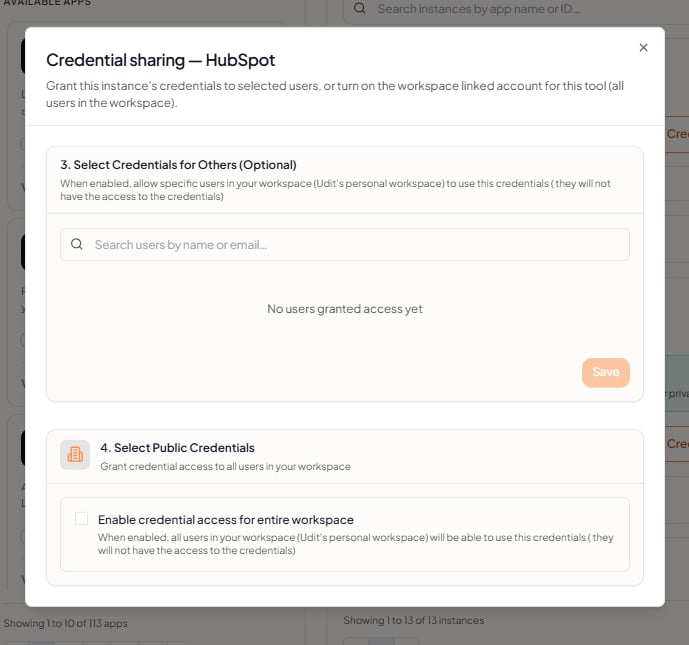 Shared users can **run** the tool through assistants and agents. They **cannot** see API keys, tokens, passwords, or other credential values.
**Public credentials** means **all Workspace members** in your **Workspace**, not the public internet. Only people in your **Workspace** can be granted access.
### Share with specific users (optional)
Use **Select Credentials for Others** when you want only certain **Workspace members** to use this tool.
1. Search for users by name or email.
2. Add the users who should be allowed to use the credentials.
3. Click **Save**.
Until you add users, the list shows *No users granted access yet*. Users you grant access can use the tool when it is attached to an assistant or agent they can run. They do not get access to view or change the stored credentials.
**When to use this option:** Personal or sensitive integrations (for example a Google Drive account tied to one team lead), tools that only one squad should use, or pilots where you want to limit access before rolling out **Workspace**-wide.
### Share with the entire Workspace
Use **Select Public Credentials** when every **Workspace member** should be able to use this tool.
1. Enable **Enable credential access for entire workspace**.
2. Save the policy.
When this option is on, all users in the **Workspace** can use the credentials through linked assistants and agents. They still cannot view or edit the credential values themselves.
**When to use this option:** Shared company integrations (for example a team Slack workspace, a central SharePoint drive, or a sandbox everyone should use). Prefer this when the underlying account is already a shared service account.
You can combine **Workspace**-wide access with specific-user grants, or use either option on its own, depending on how your team works.
## What sharing does and does not do
### What sharing grants
* Permission to **use** the tool's credentials when the instance is attached to an assistant or agent the user can run
* Ability to benefit from OAuth or API access **without** seeing secrets
### What sharing does not grant
Sharing does **not**:
* Attach the tool to other assistants or agents — you still add the instance separately on each assistant or agent that should use it
* Let shared users **view**, **copy**, or **edit** API keys, tokens, or passwords
* Let shared users **re-authorize** OAuth or **update credentials** on the instance (unless they are the connector or an admin with tool management access)
* Let shared users **remove** the instance or change its configuration from **Admin** → **Tools** unless they have admin rights
Think of sharing as **who may use the keys**, not **who owns the integration**. Connecting and attaching the tool is a separate step from sharing credentials.
## Example: Share Google Drive with your support team
1. In **Admin** → **Tools**, create a **Google Drive** instance (or use an existing one on **My Apps**) and complete OAuth.
2. Open the **Support** assistant (or create one) → **Step 3: Knowledge & Tools** → **Tools & Functions**.
3. Under **Available apps**, find **Google Drive** and attach your instance under **Application instances**.
4. On that instance card, click **Credential sharing policy**.
5. Under **Select Credentials for Others**, search for each support team member and add them. Click **Save**.
* Alternatively, enable **Enable credential access for entire workspace** if every agent in the **Workspace** should use the same Drive connection.
6. Save the assistant. When granted users chat with that assistant, the agent can call Google Drive functions using the shared credentials — without those users ever seeing the OAuth tokens.
Repeat step 3 for any **other** assistant or agent that should use the same Drive instance. Sharing policy alone does not attach the tool elsewhere.
An administrator or instance owner typically connects the tool once, sets the sharing policy, then attaches the instance to one or more assistants or agents. Other **Workspace members** benefit from the integration without managing secrets themselves.
## Related documentation
* [Tools Overview](/tools/overview) — Create and manage tool instances
* [Creating Assistants](/guides/assistants#step-3-knowledge--tools) — Attach tools to an assistant
* [Creating Agents](/guides/agents#step-3-knowledge--tools) — Attach tools to an agent
* [Supported Tools](/tools/catalog) — Full tool catalog
* [FAQ — Tools](/more/faq#tools) — Common tool and sharing questions
Shared users can **run** the tool through assistants and agents. They **cannot** see API keys, tokens, passwords, or other credential values.
**Public credentials** means **all Workspace members** in your **Workspace**, not the public internet. Only people in your **Workspace** can be granted access.
### Share with specific users (optional)
Use **Select Credentials for Others** when you want only certain **Workspace members** to use this tool.
1. Search for users by name or email.
2. Add the users who should be allowed to use the credentials.
3. Click **Save**.
Until you add users, the list shows *No users granted access yet*. Users you grant access can use the tool when it is attached to an assistant or agent they can run. They do not get access to view or change the stored credentials.
**When to use this option:** Personal or sensitive integrations (for example a Google Drive account tied to one team lead), tools that only one squad should use, or pilots where you want to limit access before rolling out **Workspace**-wide.
### Share with the entire Workspace
Use **Select Public Credentials** when every **Workspace member** should be able to use this tool.
1. Enable **Enable credential access for entire workspace**.
2. Save the policy.
When this option is on, all users in the **Workspace** can use the credentials through linked assistants and agents. They still cannot view or edit the credential values themselves.
**When to use this option:** Shared company integrations (for example a team Slack workspace, a central SharePoint drive, or a sandbox everyone should use). Prefer this when the underlying account is already a shared service account.
You can combine **Workspace**-wide access with specific-user grants, or use either option on its own, depending on how your team works.
## What sharing does and does not do
### What sharing grants
* Permission to **use** the tool's credentials when the instance is attached to an assistant or agent the user can run
* Ability to benefit from OAuth or API access **without** seeing secrets
### What sharing does not grant
Sharing does **not**:
* Attach the tool to other assistants or agents — you still add the instance separately on each assistant or agent that should use it
* Let shared users **view**, **copy**, or **edit** API keys, tokens, or passwords
* Let shared users **re-authorize** OAuth or **update credentials** on the instance (unless they are the connector or an admin with tool management access)
* Let shared users **remove** the instance or change its configuration from **Admin** → **Tools** unless they have admin rights
Think of sharing as **who may use the keys**, not **who owns the integration**. Connecting and attaching the tool is a separate step from sharing credentials.
## Example: Share Google Drive with your support team
1. In **Admin** → **Tools**, create a **Google Drive** instance (or use an existing one on **My Apps**) and complete OAuth.
2. Open the **Support** assistant (or create one) → **Step 3: Knowledge & Tools** → **Tools & Functions**.
3. Under **Available apps**, find **Google Drive** and attach your instance under **Application instances**.
4. On that instance card, click **Credential sharing policy**.
5. Under **Select Credentials for Others**, search for each support team member and add them. Click **Save**.
* Alternatively, enable **Enable credential access for entire workspace** if every agent in the **Workspace** should use the same Drive connection.
6. Save the assistant. When granted users chat with that assistant, the agent can call Google Drive functions using the shared credentials — without those users ever seeing the OAuth tokens.
Repeat step 3 for any **other** assistant or agent that should use the same Drive instance. Sharing policy alone does not attach the tool elsewhere.
An administrator or instance owner typically connects the tool once, sets the sharing policy, then attaches the instance to one or more assistants or agents. Other **Workspace members** benefit from the integration without managing secrets themselves.
## Related documentation
* [Tools Overview](/tools/overview) — Create and manage tool instances
* [Creating Assistants](/guides/assistants#step-3-knowledge--tools) — Attach tools to an assistant
* [Creating Agents](/guides/agents#step-3-knowledge--tools) — Attach tools to an agent
* [Supported Tools](/tools/catalog) — Full tool catalog
* [FAQ — Tools](/more/faq#tools) — Common tool and sharing questions