> ## Documentation Index
> Fetch the complete documentation index at: https://docs.utopikai.com/llms.txt
> Use this file to discover all available pages before exploring further.
# Video
> Create AI-generated videos in Studio
Open **Studio** → **Video**. The heading is **Transform your ideas into videos**.
Video has three tabs:
* **Text to Video**
* **Image to Video**
* **Video Enhancement**
Use **Advanced Mode** and **Target space** if needed, then click **Generate**. Outputs appear under **My Creations**.
The live video catalog is on the [UtopikAI video models page](https://www.utopikai.com/models/video). Studio also includes image-to-video and enhancement models from the same catalog. Which models you see depends on your tenant.
## Video catalog
For pricing, see the [video models page](https://www.utopikai.com/models/video).
## Text to Video
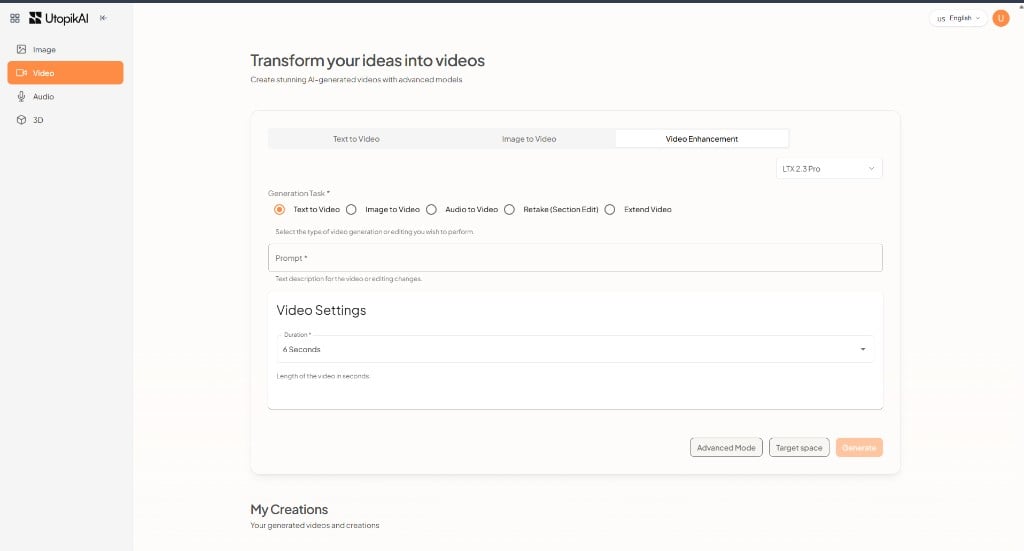
1. Select the **Text to Video** tab.
2. Choose a model (for example **LTX 2.3 Pro**, **Veo 3.1**, or **Kling V3 Video**).
3. Pick a generation task if the model offers more than one, such as **Text to Video**, **Image to Video**, **Audio to Video**, **Retake (Section Edit)**, or **Extend Video**.
4. Enter a **Prompt**.
5. Set **Duration** if shown (for example 6 seconds).
6. Click **Generate**.
 ## Image to Video
1. Select the **Image to Video** tab.
2. Choose a model (for example **VEED Fabric 1.0** or **Wan 2.7 Image to Video**).
3. Upload an **Input Image** — the first frame of the video.
4. Optionally upload **Input Audio** to drive the video.
5. Choose a **Resolution** (for example 480p or 720p).
6. Click **Generate**.
## Image to Video
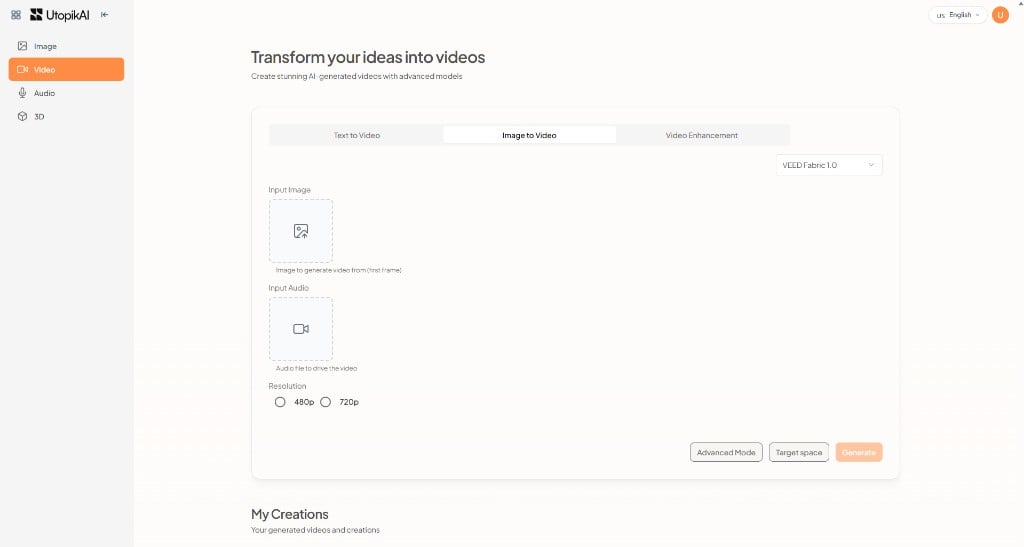
1. Select the **Image to Video** tab.
2. Choose a model (for example **VEED Fabric 1.0** or **Wan 2.7 Image to Video**).
3. Upload an **Input Image** — the first frame of the video.
4. Optionally upload **Input Audio** to drive the video.
5. Choose a **Resolution** (for example 480p or 720p).
6. Click **Generate**.
 ## Video Enhancement
Use the **Video Enhancement** tab to improve or edit an existing video. Models such as **ByteDance Video Upscaler**, **Wan 2.7 Video Edit**, and **Kling O1 Edit** are built for this mode.
## Related documentation
* [Studio Overview](/studio/overview)
* [Image](/studio/image)
* [Audio](/studio/audio)
* [3D](/studio/3d)
* [LLM](/gen_ai_configs/overview)
## Video Enhancement
Use the **Video Enhancement** tab to improve or edit an existing video. Models such as **ByteDance Video Upscaler**, **Wan 2.7 Video Edit**, and **Kling O1 Edit** are built for this mode.
## Related documentation
* [Studio Overview](/studio/overview)
* [Image](/studio/image)
* [Audio](/studio/audio)
* [3D](/studio/3d)
* [LLM](/gen_ai_configs/overview)