> ## Documentation Index
> Fetch the complete documentation index at: https://docs.utopikai.com/llms.txt
> Use this file to discover all available pages before exploring further.
# Slack Bot Setup
> How to set up a Slack bot to automatically answer questions
## UtopikAIBot Introduction
UtopikAI will connect to your Slack and listen for messages to answer.
You can easily configure rules for what channels UtopikAI should respond in, what knowledge sets should back each
configured channel, and set filters to respond or not respond to different types of messages.
When UtopikAI identifies valid questions, it will respond in the message thread with:
* An LLM generated answer
* Quotes of the most relevant excerpts
* Sources with highlighted keywords
 UtopikAI also provides a configuration page so you can create custom settings for each slack channel
(or you can just use the default settings for all your channels).
UtopikAI also provides a configuration page so you can create custom settings for each slack channel
(or you can just use the default settings for all your channels).
 Since we are using Web Sockets, UtopikAI is able to initiate the connection. This means that this is able
to work even if you are running UtopikAI inside a firewall protected VPC.
## Setting up
### Authorization
**Note:** You must be an admin of the Slack workspace to set up the Slack bot.
1. Navigate and sign in to [https://api.slack.com/apps](https://api.slack.com/apps).
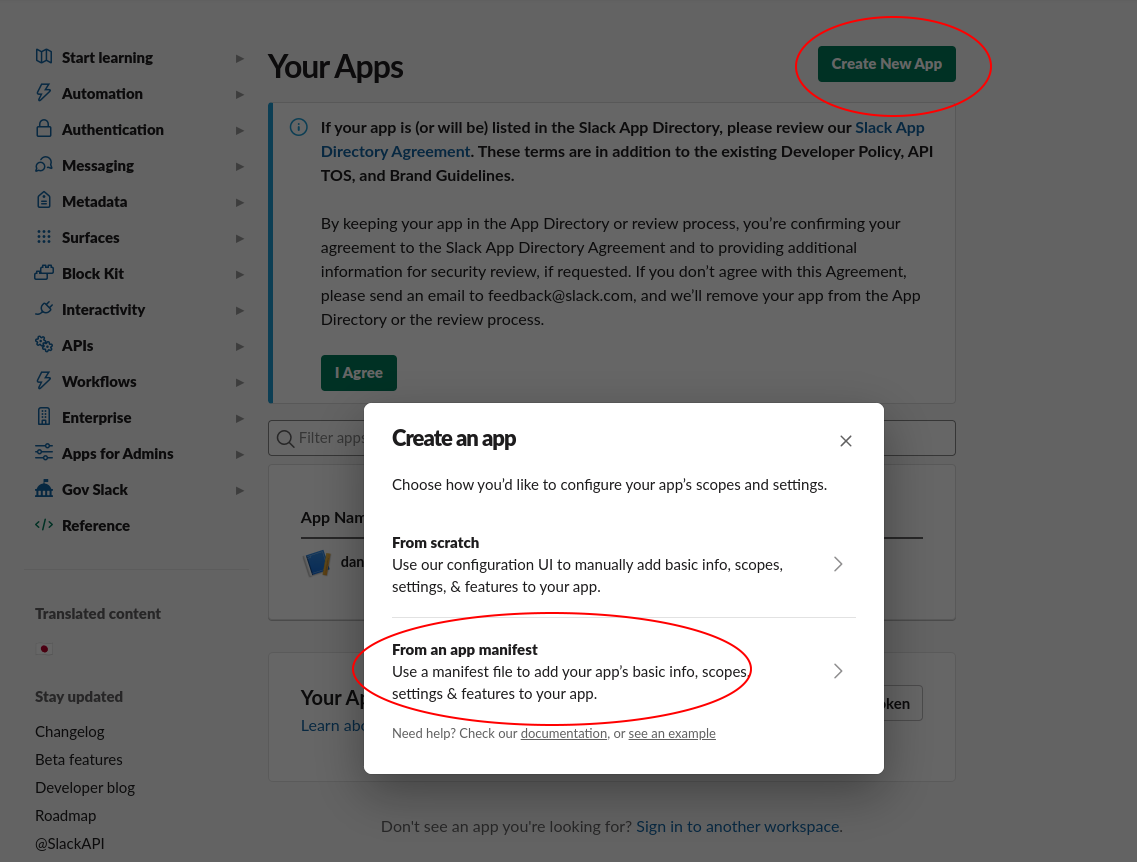
2. Create a new Slack app:
* Click the **Create New App** button in the top right.
* Select **From an app manifest** option.
* Select the relevant workspace from the dropdown and click **Next**.
Since we are using Web Sockets, UtopikAI is able to initiate the connection. This means that this is able
to work even if you are running UtopikAI inside a firewall protected VPC.
## Setting up
### Authorization
**Note:** You must be an admin of the Slack workspace to set up the Slack bot.
1. Navigate and sign in to [https://api.slack.com/apps](https://api.slack.com/apps).
2. Create a new Slack app:
* Click the **Create New App** button in the top right.
* Select **From an app manifest** option.
* Select the relevant workspace from the dropdown and click **Next**.
 3. Select the "YAML" tab, paste the following manifest into the text box, and click **Next**:
```
display_information:
name: UtopikAIBot
description: I help answer questions!
features:
app_home:
home_tab_enabled: false
messages_tab_enabled: true
messages_tab_read_only_enabled: false
bot_user:
display_name: UtopikAIBot
always_online: true
slash_commands:
- command: /UtopikAI
description: Get back a private answer!
usage_hint: Put your question here!
should_escape: false
oauth_config:
scopes:
bot:
- app_mentions:read
- channels:history
- channels:join
- channels:read
- chat:write
- commands
- groups:history
- groups:read
- im:history
- im:read
- mpim:history
- reactions:write
- users:read.email
- users:read
settings:
event_subscriptions:
bot_events:
- app_mention
- message.channels
- message.groups
- message.im
- message.mpim
interactivity:
is_enabled: true
org_deploy_enabled: false
socket_mode_enabled: true
token_rotation_enabled: false
```
5. Click the **Create** button.
6. Generate an `App-level Token`; Under **Basic Information**, scroll to the **App-level tokens** section and click the button to generate an **App-level token**. ([learn more](https://api.slack.com/apis/connections/socket#token))
3. Select the "YAML" tab, paste the following manifest into the text box, and click **Next**:
```
display_information:
name: UtopikAIBot
description: I help answer questions!
features:
app_home:
home_tab_enabled: false
messages_tab_enabled: true
messages_tab_read_only_enabled: false
bot_user:
display_name: UtopikAIBot
always_online: true
slash_commands:
- command: /UtopikAI
description: Get back a private answer!
usage_hint: Put your question here!
should_escape: false
oauth_config:
scopes:
bot:
- app_mentions:read
- channels:history
- channels:join
- channels:read
- chat:write
- commands
- groups:history
- groups:read
- im:history
- im:read
- mpim:history
- reactions:write
- users:read.email
- users:read
settings:
event_subscriptions:
bot_events:
- app_mention
- message.channels
- message.groups
- message.im
- message.mpim
interactivity:
is_enabled: true
org_deploy_enabled: false
socket_mode_enabled: true
token_rotation_enabled: false
```
5. Click the **Create** button.
6. Generate an `App-level Token`; Under **Basic Information**, scroll to the **App-level tokens** section and click the button to generate an **App-level token**. ([learn more](https://api.slack.com/apis/connections/socket#token))
Add the `connections:write` scope to the app-level token and click **Generate**.
Copy this somewhere safe for now, as you will need this later to initiate the
Web Socket-based connection to Slack.
7. In the app page, navigate to the **OAuth & Permissions** tab under the **Features** header.
8. Under **OAuth Tokens for Your Workspace**, select `Install to Workspace` and Allow the app.
 9. Copy the **Bot User OAuth Token**, this will be needed later to enable us to respond to messages as UtopikAIBot.
### Setting UtopikAI to use it
Start by finding the admin page in the top right of the UtopikAI web UI.
9. Copy the **Bot User OAuth Token**, this will be needed later to enable us to respond to messages as UtopikAIBot.
### Setting UtopikAI to use it
Start by finding the admin page in the top right of the UtopikAI web UI.
 On the left hand menu of the admin page, navigate to the bottom to **Bots**.
Provide your Slack Tokens and UtopikAI will start to respond to your slack channels after a short startup delay.
On the left hand menu of the admin page, navigate to the bottom to **Bots**.
Provide your Slack Tokens and UtopikAI will start to respond to your slack channels after a short startup delay.
 There are also a set of less often used / more advanced configuration options available via environment
variables that can set things like how many "Reference Documents" to show per answer, etc.
Refer to the available configs
[here](https://github.com/UtopikAI-dot-app/UtopikAI/blob/main/backend/UtopikAI/configs/UtopikAIbot_configs.py)
There are also a set of less often used / more advanced configuration options available via environment
variables that can set things like how many "Reference Documents" to show per answer, etc.
Refer to the available configs
[here](https://github.com/UtopikAI-dot-app/UtopikAI/blob/main/backend/UtopikAI/configs/UtopikAIbot_configs.py)