> ## Documentation Index
> Fetch the complete documentation index at: https://docs.utopikai.com/llms.txt
> Use this file to discover all available pages before exploring further.
# Slack Connector
> Access knowledge from your Messages
## How it works
The Slack connector indexes all public channels for a given workspace.
* Upcoming: Support for private channels by tagging/adding the UtopikAI Slack Bot to private channels.
## Setting up
### Authorization
1. **Note: You must be an admin of the Slack workspace to set up the connector**
2. Navigate and sign in to [https://api.slack.com/apps](https://api.slack.com/apps).
3. Create a new Slack app:
* Click the **Create New App** button in the top right.
* Select **From an app manifest** option.
* Select the relevant workspace from the dropdown and click **Next**.
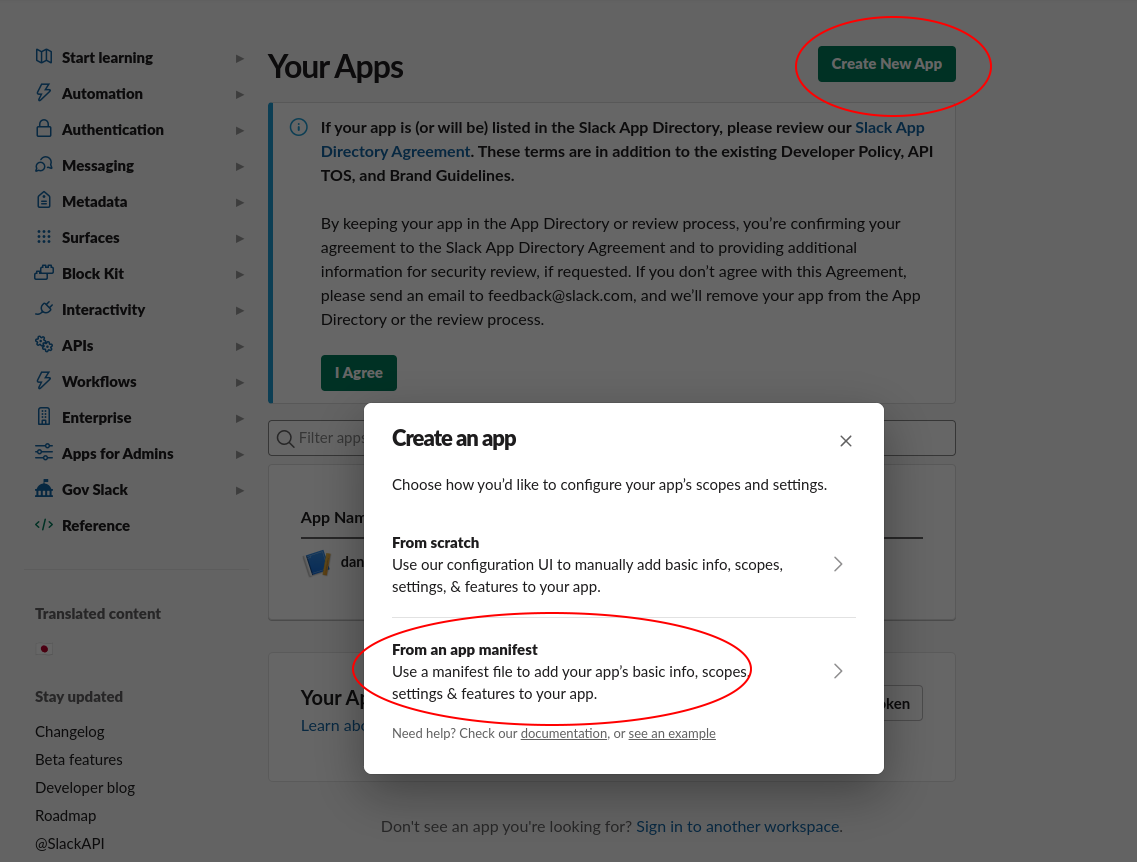 4. Select the "YAML" tab, paste the following manifest into the text box, and click **Next**:
```
display_information:
name: UtopikAIConnector
description: ReadOnly Connector for indexing UtopikAI
features:
bot_user:
display_name: UtopikAIConnector
always_online: false
oauth_config:
scopes:
bot:
- channels:history
- channels:read
- groups:history
- groups:read
- channels:join
- im:history
- users:read
- users:read.email
- usergroups:read
settings:
org_deploy_enabled: false
socket_mode_enabled: false
token_rotation_enabled: false
```
5. Click the **Create** button.
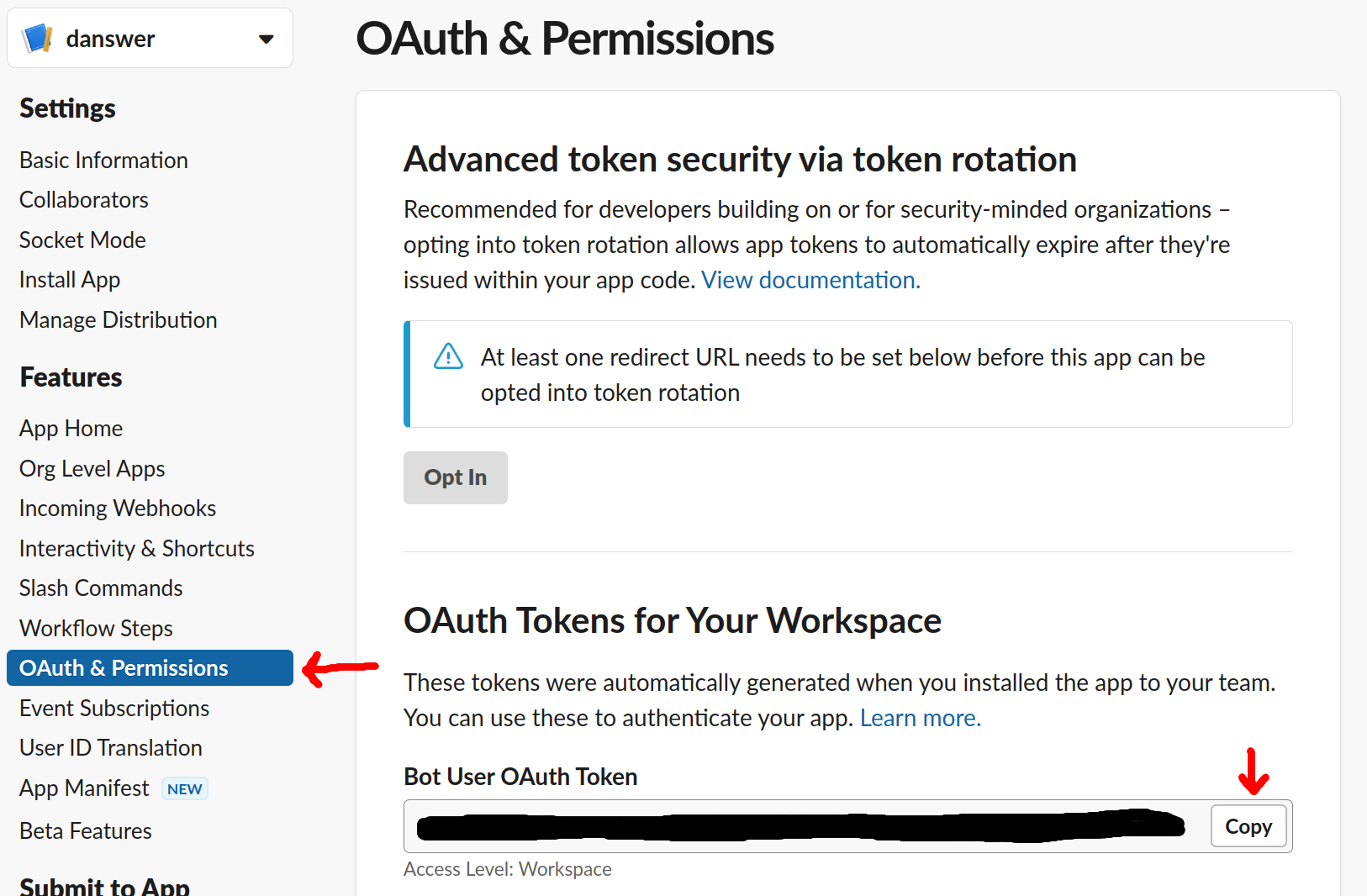
6. In the app page, navigate to the **OAuth & Permissions** tab under the **Features** header.
7. Copy the **Bot User OAuth Token**, this will be used to access Slack.
4. Select the "YAML" tab, paste the following manifest into the text box, and click **Next**:
```
display_information:
name: UtopikAIConnector
description: ReadOnly Connector for indexing UtopikAI
features:
bot_user:
display_name: UtopikAIConnector
always_online: false
oauth_config:
scopes:
bot:
- channels:history
- channels:read
- groups:history
- groups:read
- channels:join
- im:history
- users:read
- users:read.email
- usergroups:read
settings:
org_deploy_enabled: false
socket_mode_enabled: false
token_rotation_enabled: false
```
5. Click the **Create** button.
6. In the app page, navigate to the **OAuth & Permissions** tab under the **Features** header.
7. Copy the **Bot User OAuth Token**, this will be used to access Slack.
 ### Indexing
1. Navigate to the Connector Dashboard and select the **Slack** Connector.
2. Place the **Bot User OAuth Token** under **Step 1 Provide Credentials**
### Indexing
1. Navigate to the Connector Dashboard and select the **Slack** Connector.
2. Place the **Bot User OAuth Token** under **Step 1 Provide Credentials**
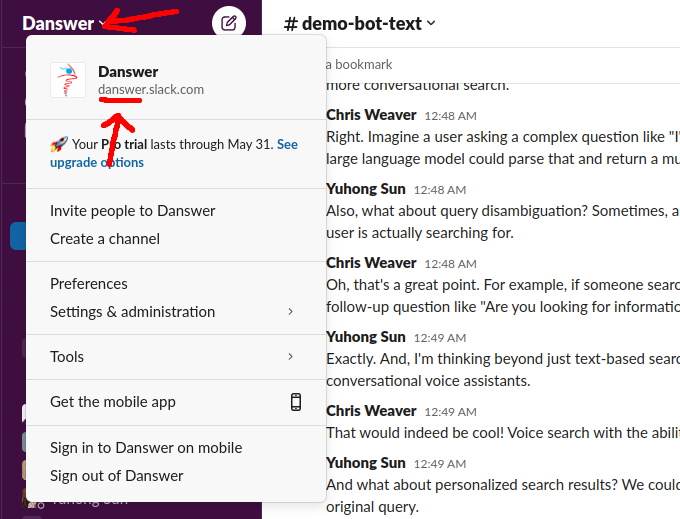
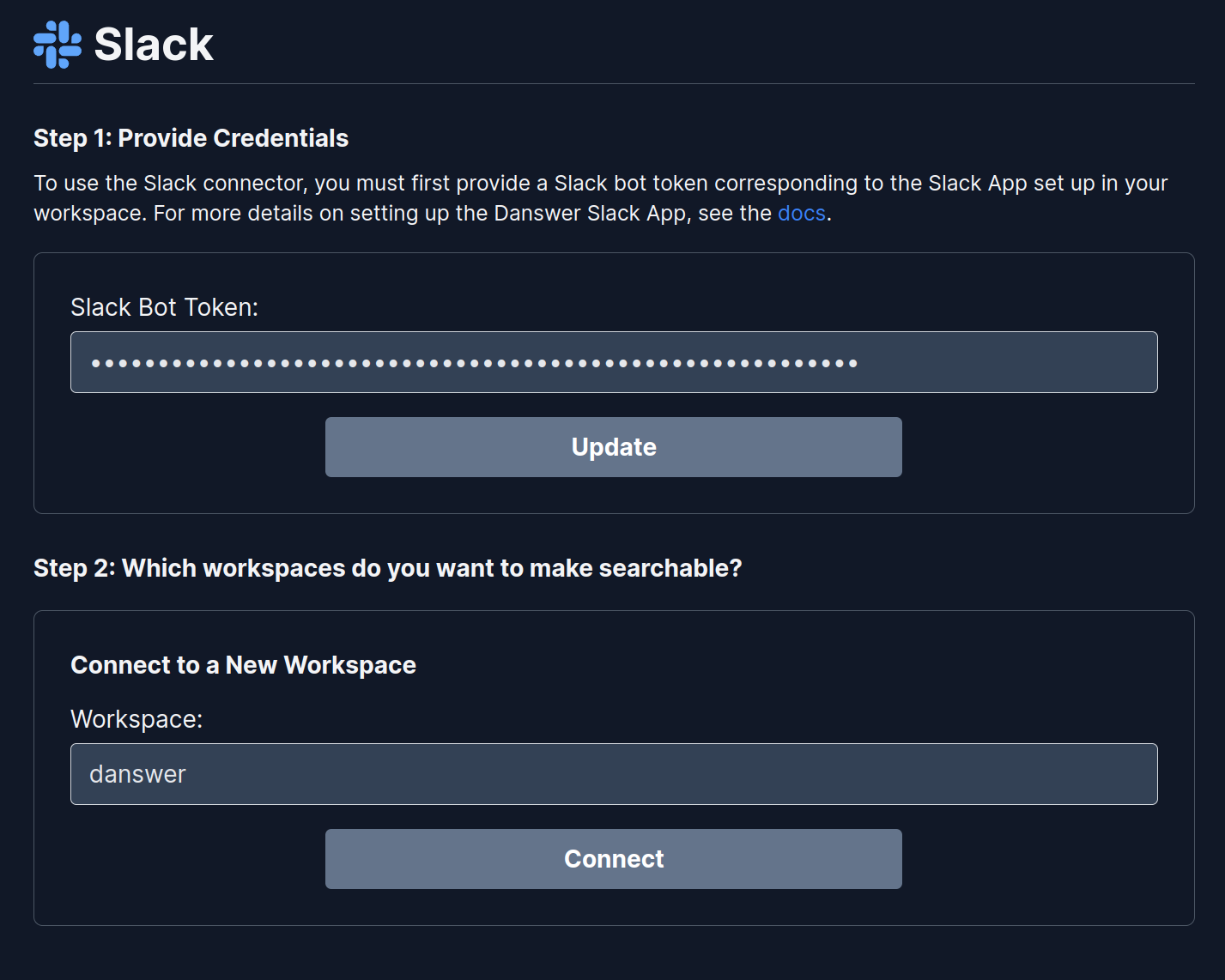 3. Set the **Workspace ID** (see below) and click **Connect**.
 **Note:** The first indexing pulls all of the public channels and takes longer than future updates.