> ## Documentation Index
> Fetch the complete documentation index at: https://docs.utopikai.com/llms.txt
> Use this file to discover all available pages before exploring further.
# Salesforce Connector
> Access knowledge from your Salesforce **Object**s
## How it works
The Salesforce connector indexes documents from your Salesforce. These documents organized around the **Objects** that you indicate. Examples are below.
## Setting up
### Authorization
1. Log into Salesforce
* The Salesforce user must be an organization member or have admin access to the data you would like to index.
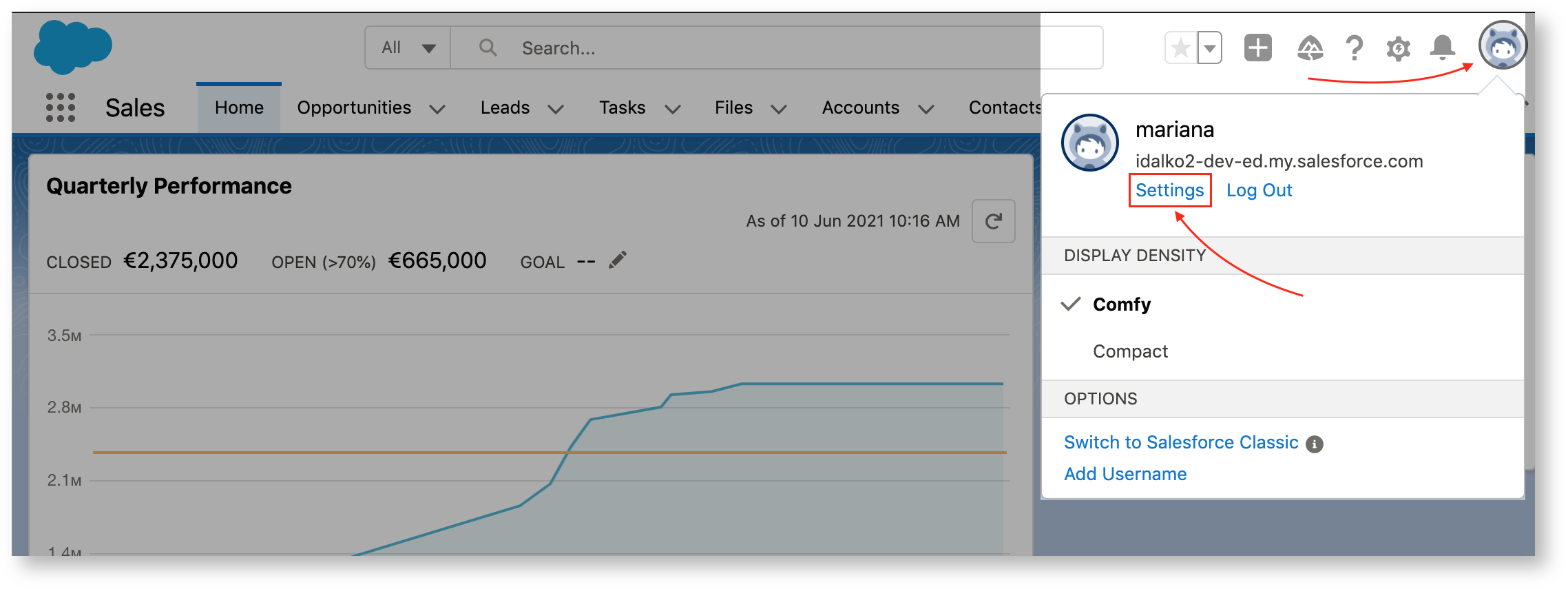
2. Click the profile avatar and choose Settings.
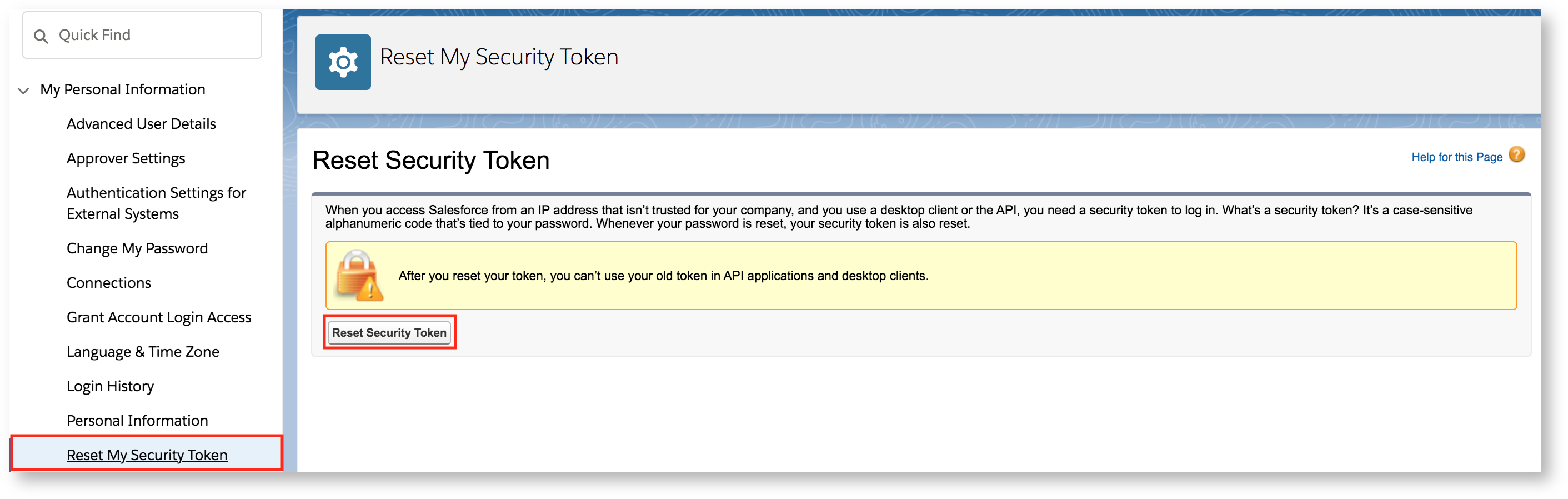
 3. Select **My Personal Information** → **Reset My Security Token**.
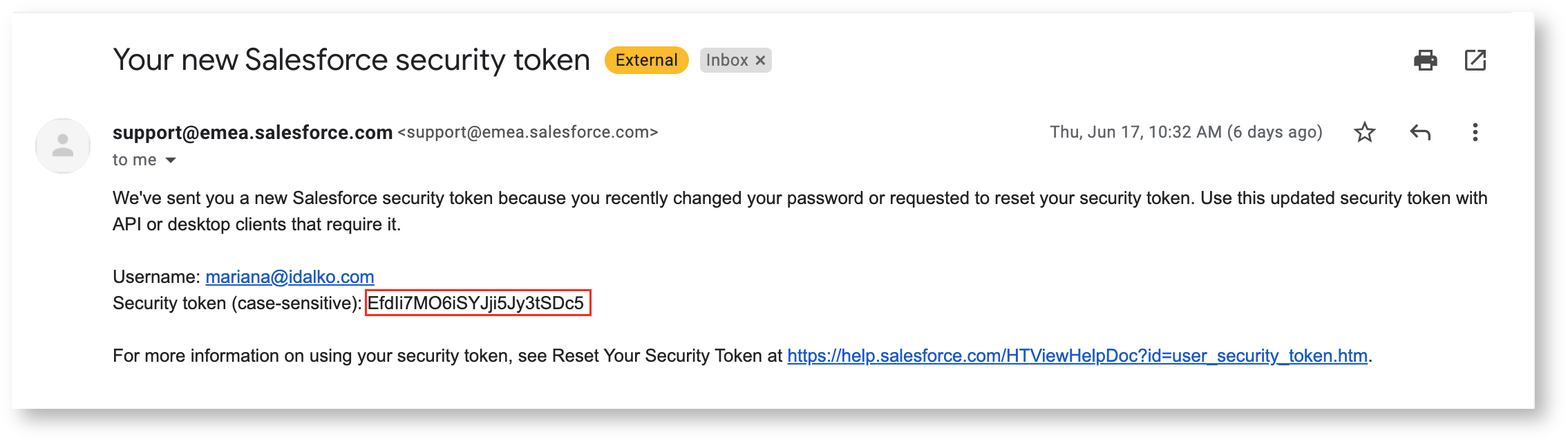
 4. Check your email for the security token.
 5. Once the token has been regenerated, you can use it (as well as your username and password) to authorize your UtopikAI connector
### Indexing
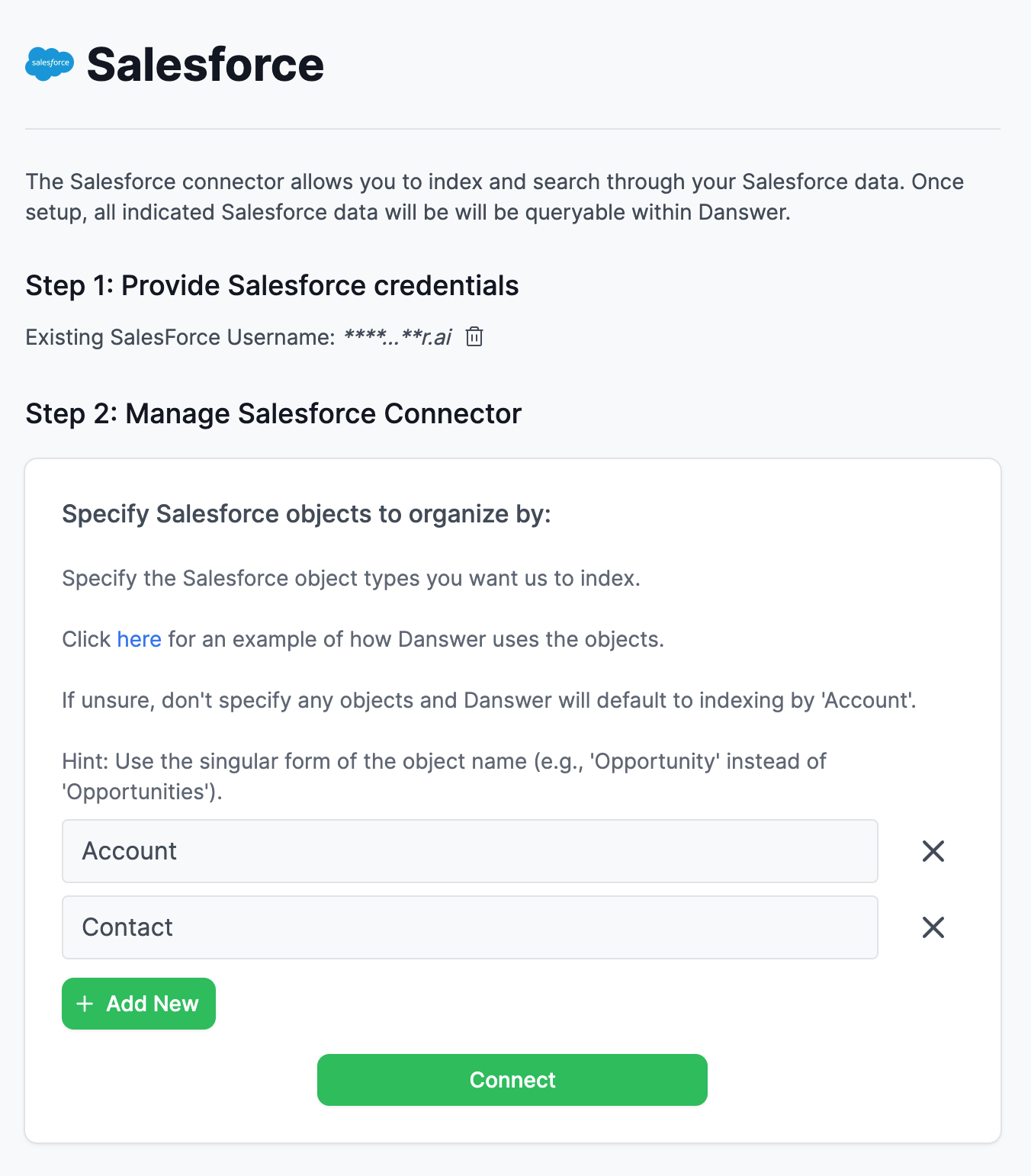
1. Navigate to the Admin Dashboard and select the **Salesforce** Connector Tile.
2. Provide your **Username**, **Password** and the **Security Token** received from the above steps.
3. Enter the [Salesforce Object(s)](https://developer.salesforce.com/docs/atlas.en-us.object_reference.meta/object_reference/sforce_api_objects_list.htm) you wish to index and organize your UtopikAI documents by.
* make sure to use the singular version of object name (e.g. Opportunity instead of Opportunities)
* if no objects are indicated, it will default to indexing by **Account**
4. Information will then be indexed by the indicated object(s)
### An Example
* You indicate you'd like to organize information by **Account** and click connect:
5. Once the token has been regenerated, you can use it (as well as your username and password) to authorize your UtopikAI connector
### Indexing
1. Navigate to the Admin Dashboard and select the **Salesforce** Connector Tile.
2. Provide your **Username**, **Password** and the **Security Token** received from the above steps.
3. Enter the [Salesforce Object(s)](https://developer.salesforce.com/docs/atlas.en-us.object_reference.meta/object_reference/sforce_api_objects_list.htm) you wish to index and organize your UtopikAI documents by.
* make sure to use the singular version of object name (e.g. Opportunity instead of Opportunities)
* if no objects are indicated, it will default to indexing by **Account**
4. Information will then be indexed by the indicated object(s)
### An Example
* You indicate you'd like to organize information by **Account** and click connect:
 - UtopikAI will generate a document for every single **Account** in your Salesforce - Attached to each document will be all the information associated with that **Account** - This information would also include information from the **Account**'s children objects (E.g. all associated **Contact**s, **Note**s, etc.) - This means indicating **Account** means that all **Contact**s that are attached to an account will also be grabbed - However, if you want to index any **Contact**s that aren't attached to any **Account**s, (as well as **Account**s), you would indicate that like so: