> ## Documentation Index
> Fetch the complete documentation index at: https://docs.utopikai.com/llms.txt
> Use this file to discover all available pages before exploring further.
# S3 Connector
> Access documents stored in Amazon S3 buckets
## How it works
The S3 connector pulls in all documents from the specified Amazon S3 bucket. It supports various file formats including PDF, DOC, DOCX, TXT, and more.
Documents are updated every **1** day.
## Setting up
### Authorization
1. Log into your AWS Management Console.
2. Navigate to the IAM (Identity and Access Management) dashboard.
3. In the left sidebar, click on "Users" and then "Create user".
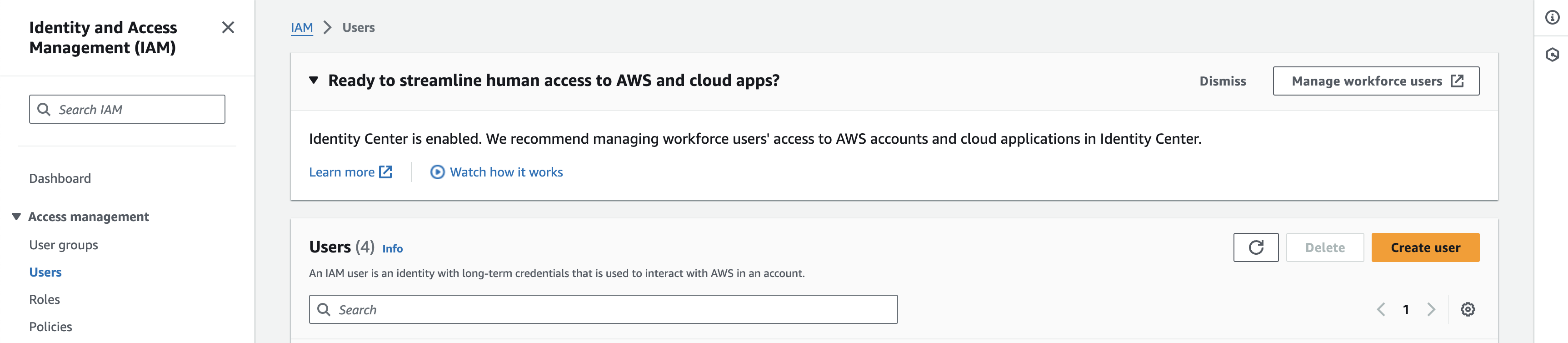 4. Set a name for the new user (e.g., "UtopikAIS3Connector") and click "Next".
5. Click "Attach policies directly" and search for "AmazonS3ReadOnlyAccess" or a similarly permissive policy.
6. Select this policy and click "Next".
7. Add any tags if needed, then click "Create user".
8. You'll now be on the `users` page. Click on the user you just created.
9. Click "create access key" and select "Third-party service"
10. Select "I understand the above recommendation and want to proceed to create an access key" and then "Next".
11. Optionally, set a description tag and then press "create access key".
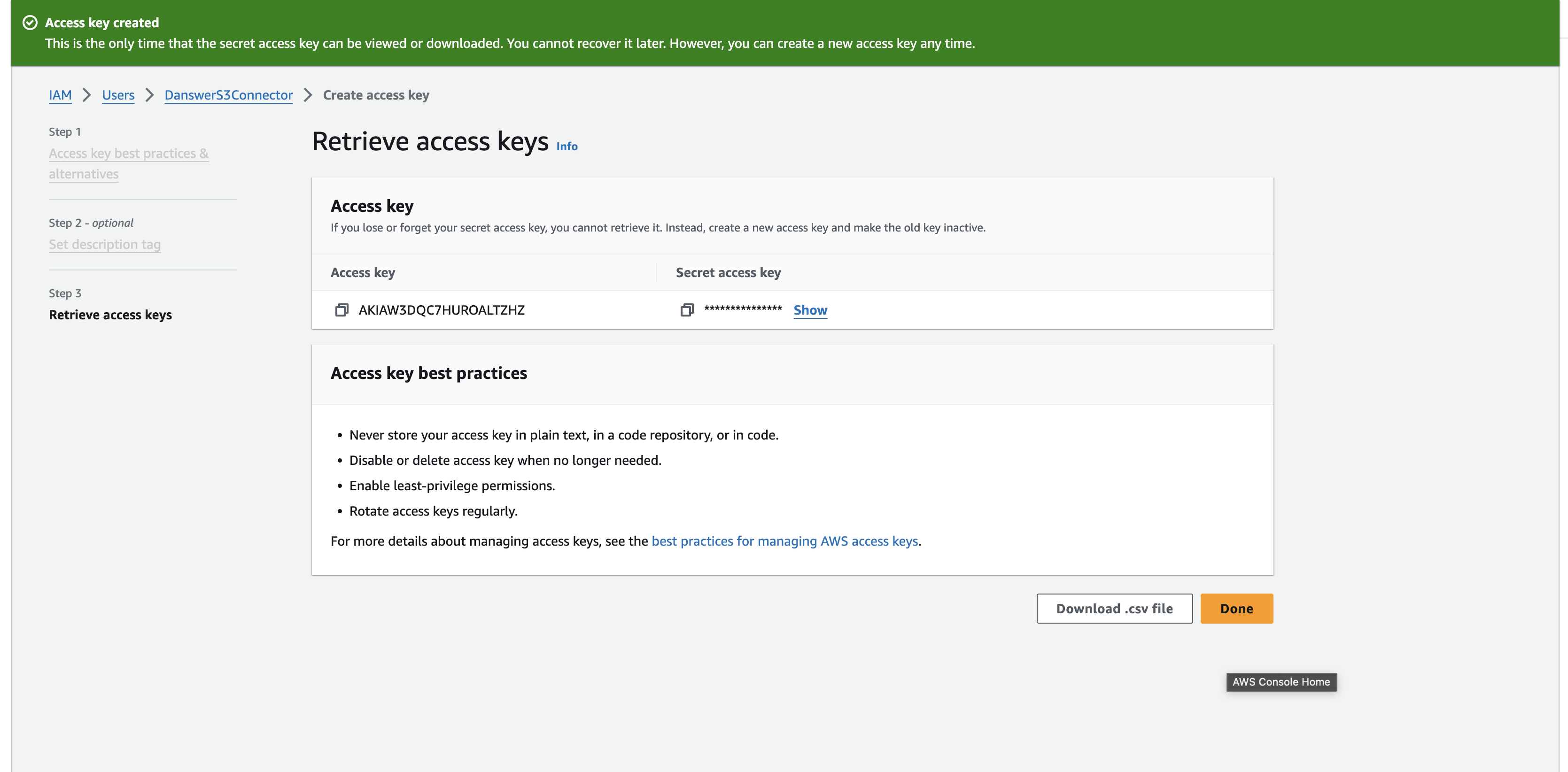
12. You should now see, you'll see the Access Key ID and Secret Access Key. Make sure to copy these immediately as you won't be able to access the Secret Access Key again.
4. Set a name for the new user (e.g., "UtopikAIS3Connector") and click "Next".
5. Click "Attach policies directly" and search for "AmazonS3ReadOnlyAccess" or a similarly permissive policy.
6. Select this policy and click "Next".
7. Add any tags if needed, then click "Create user".
8. You'll now be on the `users` page. Click on the user you just created.
9. Click "create access key" and select "Third-party service"
10. Select "I understand the above recommendation and want to proceed to create an access key" and then "Next".
11. Optionally, set a description tag and then press "create access key".
12. You should now see, you'll see the Access Key ID and Secret Access Key. Make sure to copy these immediately as you won't be able to access the Secret Access Key again.
 ### Indexing
1. Navigate to the Admin Dashboard and select the **S3** Connector.
2. In **Step 1**, provide your AWS credentials:
### Indexing
1. Navigate to the Admin Dashboard and select the **S3** Connector.
2. In **Step 1**, provide your AWS credentials:
 * If AWS Access Key ID and AWS Secret Access Key are provided, they will be used for authenticating the connector.
* Otherwise, the Profile Name will be used (if provided).
* If no credentials are provided, then the connector will try to authenticate with any default AWS credentials available.
**AWS Access Key ID:**
**AWS Secret Access Key:**
**Profile Name:**
3. Click "Update" to save your credentials.
4. In **Step 2**, specify which S3 bucket you want to make searchable:
* If AWS Access Key ID and AWS Secret Access Key are provided, they will be used for authenticating the connector.
* Otherwise, the Profile Name will be used (if provided).
* If no credentials are provided, then the connector will try to authenticate with any default AWS credentials available.
**AWS Access Key ID:**
**AWS Secret Access Key:**
**Profile Name:**
3. Click "Update" to save your credentials.
4. In **Step 2**, specify which S3 bucket you want to make searchable:
 5. Click "Connect" to begin indexing.
You should now see a page like below and be able to add more buckets with the same credentials!
5. Click "Connect" to begin indexing.
You should now see a page like below and be able to add more buckets with the same credentials!
 ## Understanding S3 Structure
Amazon S3 organizes data into buckets. Each bucket can contain an unlimited number of objects (files). You can think of a bucket as a root directory, and the objects as files within that directory.
For more information on S3 structure, visit the [Amazon S3 documentation](https://docs.aws.amazon.com/AmazonS3/latest/userguide/Welcome.html).
## Understanding S3 Structure
Amazon S3 organizes data into buckets. Each bucket can contain an unlimited number of objects (files). You can think of a bucket as a root directory, and the objects as files within that directory.
For more information on S3 structure, visit the [Amazon S3 documentation](https://docs.aws.amazon.com/AmazonS3/latest/userguide/Welcome.html).