> ## Documentation Index
> Fetch the complete documentation index at: https://docs.utopikai.com/llms.txt
> Use this file to discover all available pages before exploring further.
# Oracle Storage Connector
> Access documents stored in Oracle Cloud Infrastructure Object Storage
## How it works
The Oracle Cloud Infrastructure (OCI) Storage connector pulls in all documents from the specified OCI bucket. It supports various file formats including PDF, DOC, DOCX, TXT, and more.
Documents are updated every **1** day.
## Setting up
### Authorization
1. Log into your Oracle Cloud Console.
2. Click on the user icon in the top-right corner and select "User Settings".
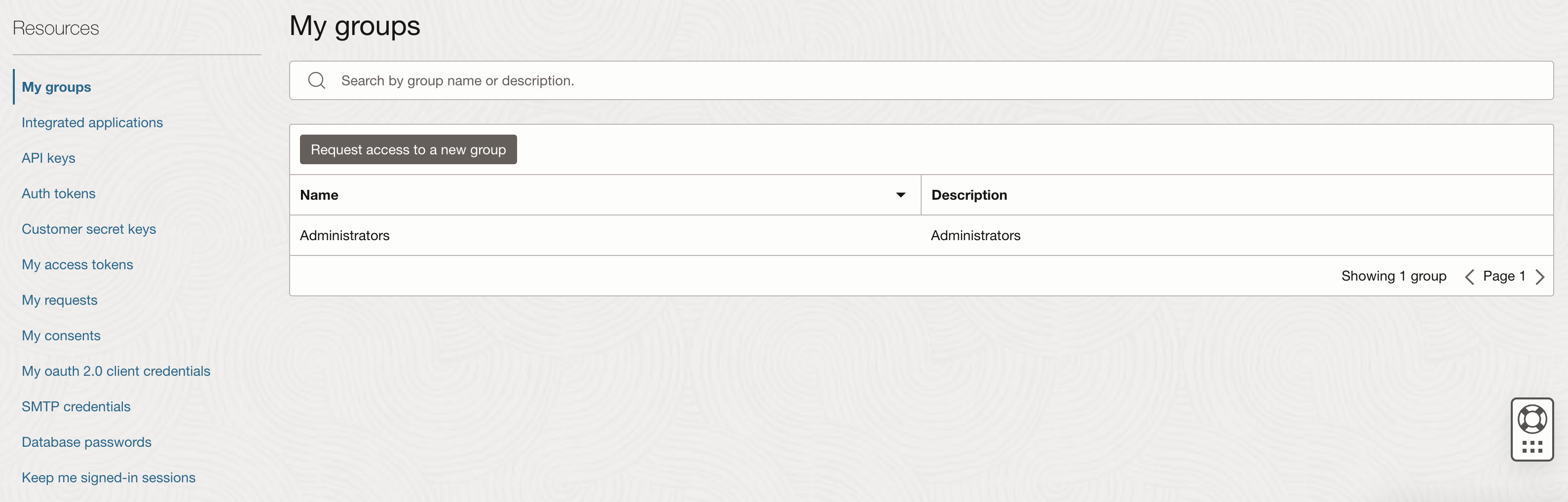
 3. Under "Resources", click on "Customer Secret Keys".
 4. Click "Generate Secret Key".
5. Enter a friendly name for your key (e.g., "UtopikAIOCIConnector").
6. Click "Generate Secret Key".
7. You will see your Secret Key. Make sure to copy the key immediately, as you won't be able to retrieve the Secret Key later.
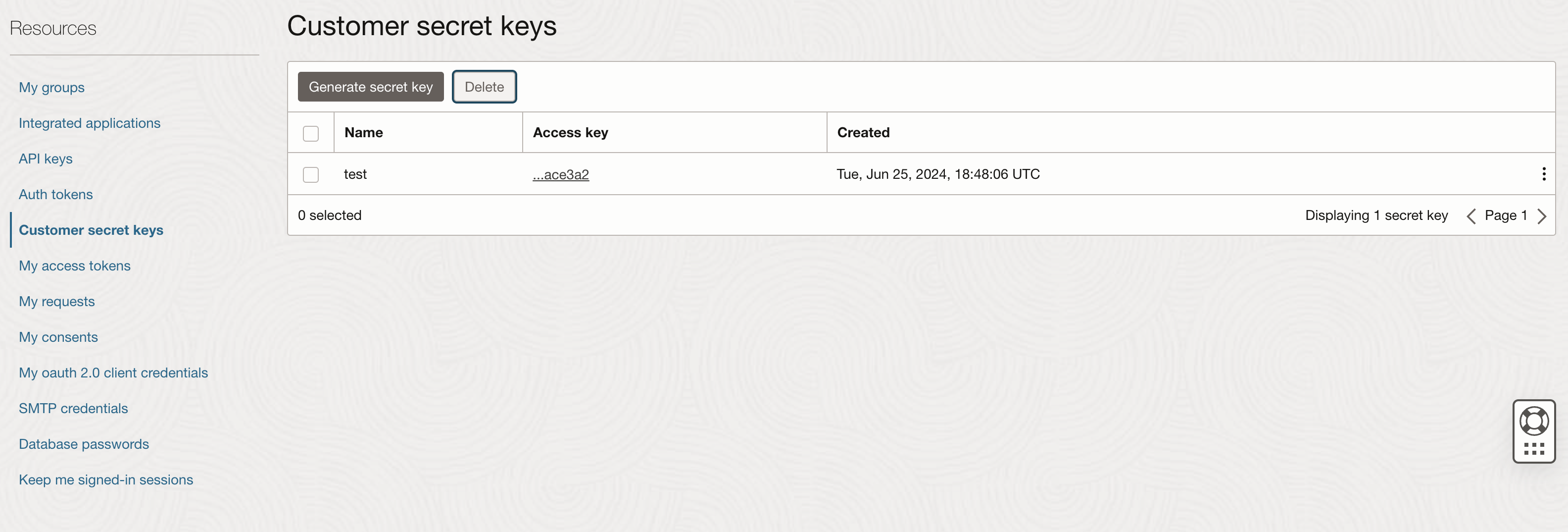
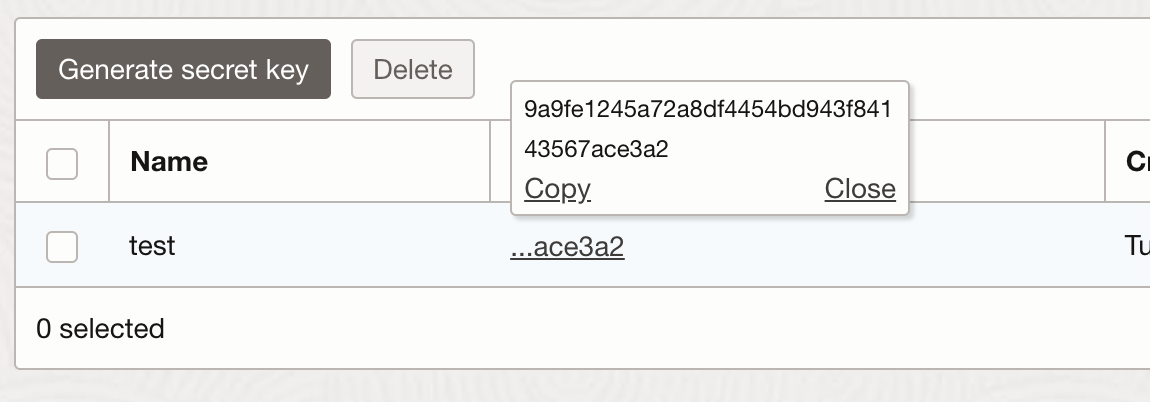
8. You should now be taken to the "Customer Secret Keys" page and see a list of keys (including the name of the key you just generated). The corresponding access key should be present.
4. Click "Generate Secret Key".
5. Enter a friendly name for your key (e.g., "UtopikAIOCIConnector").
6. Click "Generate Secret Key".
7. You will see your Secret Key. Make sure to copy the key immediately, as you won't be able to retrieve the Secret Key later.
8. You should now be taken to the "Customer Secret Keys" page and see a list of keys (including the name of the key you just generated). The corresponding access key should be present.
 9. To find your tenancy's Object Storage namespace, click on the user icon in the top-right corner and select "Tenancy: \[your tenancy name]".
10. In the tenancy details, you'll find the Object Storage namespace.
### Indexing
1. Navigate to the Admin Dashboard and select the **Oracle Cloud Infrastructure Storage** Connector.
2. In **Step 1**, provide your OCI credentials:
9. To find your tenancy's Object Storage namespace, click on the user icon in the top-right corner and select "Tenancy: \[your tenancy name]".
10. In the tenancy details, you'll find the Object Storage namespace.
### Indexing
1. Navigate to the Admin Dashboard and select the **Oracle Cloud Infrastructure Storage** Connector.
2. In **Step 1**, provide your OCI credentials:
 * Provide your OCI Access Key, Secret Key, Namespace, and Region for authentication.
* These credentials will be used to access your OCI buckets.
**OCI Access Key:**
**OCI Secret Key:**
**Namespace:**
**Region:**
3. Click "Update" to save your credentials.
4. In **Step 2**, specify which OCI bucket you want to make searchable:
* Provide your OCI Access Key, Secret Key, Namespace, and Region for authentication.
* These credentials will be used to access your OCI buckets.
**OCI Access Key:**
**OCI Secret Key:**
**Namespace:**
**Region:**
3. Click "Update" to save your credentials.
4. In **Step 2**, specify which OCI bucket you want to make searchable:
 5. Click "Connect" to begin indexing.
## Understanding Oracle Cloud Infrastructure Object Storage Structure
Oracle Cloud Infrastructure Object Storage organizes data into buckets. Each bucket can contain an unlimited number of objects (files). You can think of a bucket as a root directory, and the objects as files within that directory.
For more information on OCI Object Storage structure, visit the [Oracle Cloud Infrastructure Object Storage documentation](https://docs.oracle.com/en-us/iaas/Content/Object/Concepts/objectstorageoverview.htm).
5. Click "Connect" to begin indexing.
## Understanding Oracle Cloud Infrastructure Object Storage Structure
Oracle Cloud Infrastructure Object Storage organizes data into buckets. Each bucket can contain an unlimited number of objects (files). You can think of a bucket as a root directory, and the objects as files within that directory.
For more information on OCI Object Storage structure, visit the [Oracle Cloud Infrastructure Object Storage documentation](https://docs.oracle.com/en-us/iaas/Content/Object/Concepts/objectstorageoverview.htm).