> ## Documentation Index
> Fetch the complete documentation index at: https://docs.utopikai.com/llms.txt
> Use this file to discover all available pages before exploring further.
# OAuth Setup
This section walks through setting up the Gmail connector using a OAuth-enabled Google App.
Anyone can do this (even without a paid Google Workspace)!
If you're an organization with a Google Workspace, and you'd rather use a Service Account to access Gmail,
it will be available soon!
### Authorization
1. Create a **Google Cloud Project**
* [https://console.cloud.google.com/projectcreate](https://console.cloud.google.com/projectcreate)
2. Enable the **Gmail API**
* On the left panel, open **APIs & services**
* Go to **Enabled APIs and services**
* On the top click **+ENABLE APIS AND SERVICES**
* Search for **Gmail API** and click **ENABLE**
* Alternatively visit this [link](https://console.cloud.google.com/apis/enableflow?apiid=gmail.googleapis.com),
select your project and enable the **Gmail API**
3. Set up the OAuth consent screen
* Under **APIs & services**, select the **OAuth consent screen** tab
* If you don't have a **Google Organization** select **External** for **User Type**
* Call the app UtopikAI (or whatever you want)
* For the required emails, use any email of your choice or `founders@UtopikAI.app`
if you wish for the UtopikAI team to help handle issues.
* Click **SAVE AND CONTINUE**
4. Set up Scopes
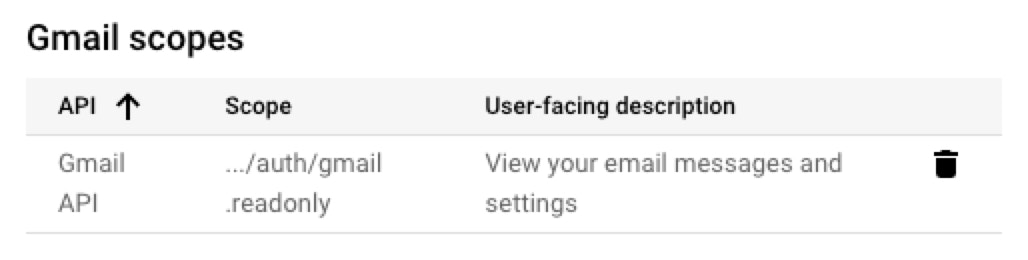
* Add the scope `.../auth/gmail.readonly` for `Gmail API`
#### To enable permission syncing for this connector:
* Enable the **Admin SDK API**
* visit this [link](https://console.cloud.google.com/flows/enableapi?apiid=admin.googleapis.com),
select your project and enable the **Admin SDK API**
* Add the scope `.../auth/admin.directory.user.readonly` for `Admin SDK API`
* Add the scope `.../auth/admin.directory.group.readonly` for `Admin SDK API`
* The account performing the OAuth flow must have an Admin role in the Google Workspace that has access to the "Groups > Read" privilege.
* This can be set by an admin in the admin panel of the Google Workspace under Account>Admin roles.
* **Note**: If you are using a Google Workspace, you can also set up a Service Account to access Gmail. This is currently in development and will be available soon.
 5. Set up Test users
* This is only applicable for users without a Google Organization.
* Typically for a company, UtopikAI would be set up as an internal app so this step would not apply.
* Add at least one test user email. Only the email accounts added here will be allowed to run the OAuth
flow to index new emails.
* Click **SAVE AND CONTINUE**, review the changes and click **BACK TO DASHBOARD**
6. Create Credentials
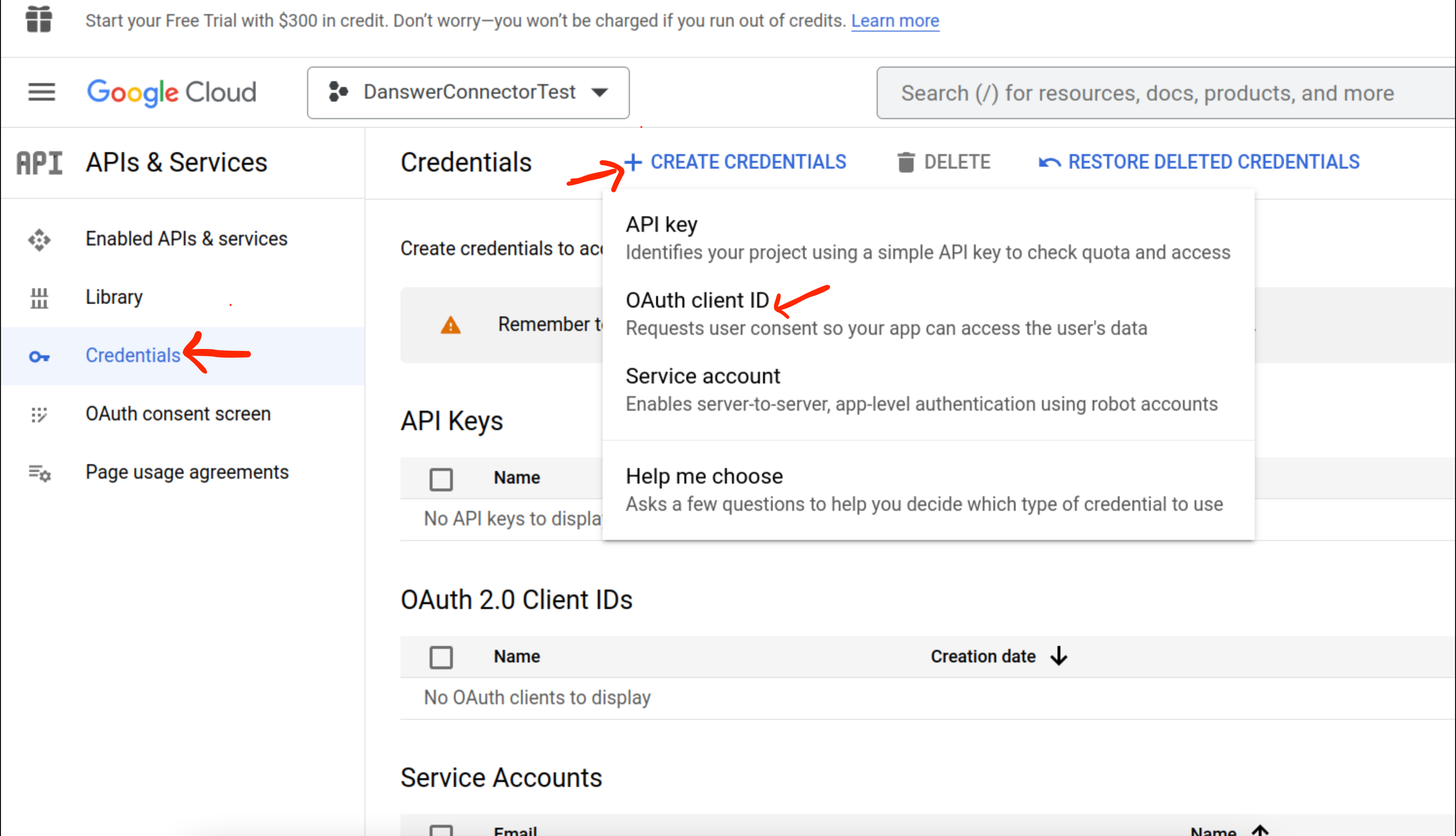
* Go to the **Credentials** tab and select **+ CREATE CREDENTIALS** -> **OAuth client ID**
5. Set up Test users
* This is only applicable for users without a Google Organization.
* Typically for a company, UtopikAI would be set up as an internal app so this step would not apply.
* Add at least one test user email. Only the email accounts added here will be allowed to run the OAuth
flow to index new emails.
* Click **SAVE AND CONTINUE**, review the changes and click **BACK TO DASHBOARD**
6. Create Credentials
* Go to the **Credentials** tab and select **+ CREATE CREDENTIALS** -> **OAuth client ID**
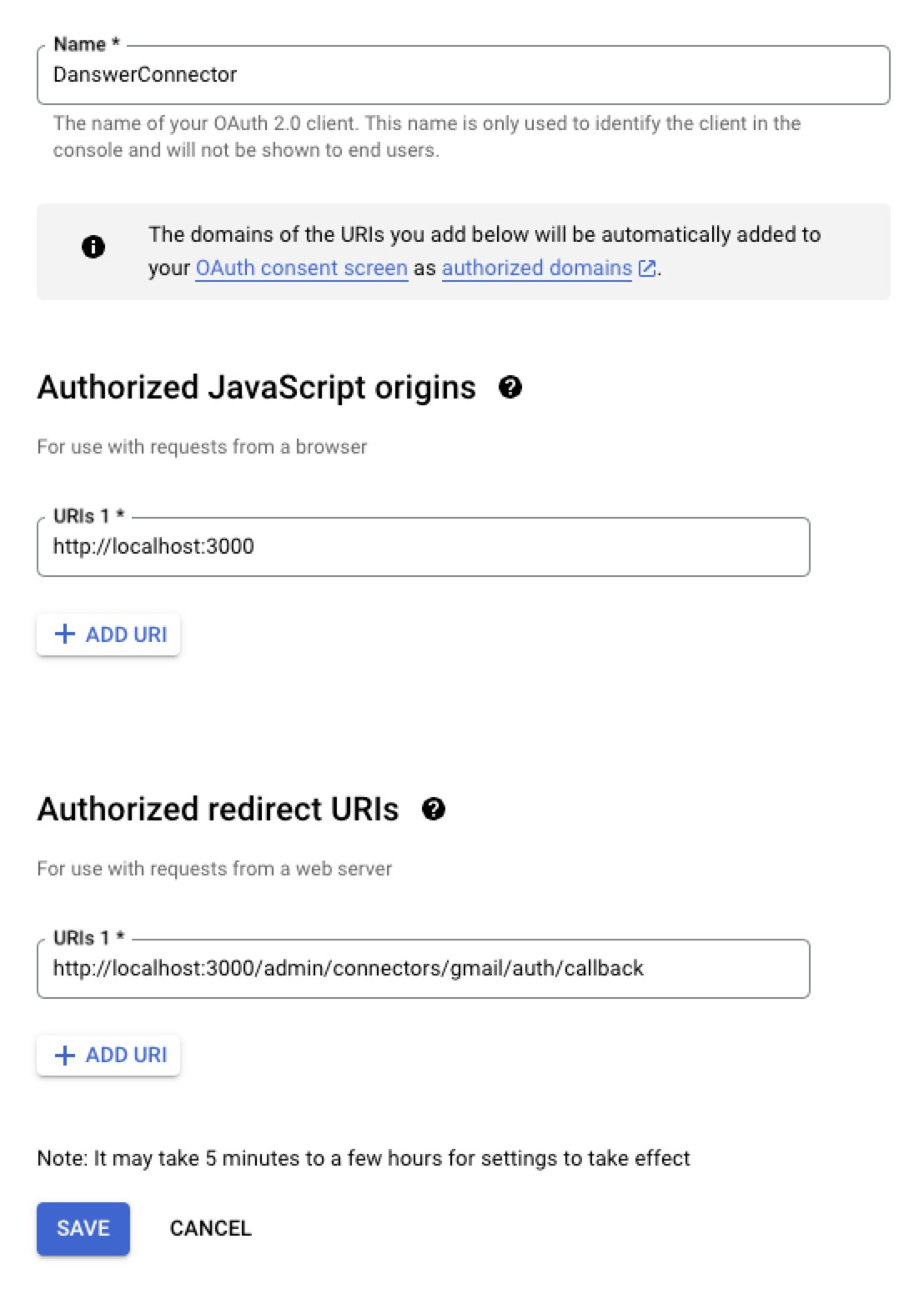
 - Choose **Web application** and give it some name like `UtopikAIConnector` - Add a **Authorized JavaScript origins** for `http://localhost:3000` (or `https://` if you have setup UtopikAI for production use) - Add a **Authorized redirect URIs** for `http://localhost:3000/admin/connectors/gmail/auth/callback`
(or `https:///admin/connectors/gmail/auth/callback` if you have setup UtopikAI for production use)
- Choose **Web application** and give it some name like `UtopikAIConnector` - Add a **Authorized JavaScript origins** for `http://localhost:3000` (or `https://` if you have setup UtopikAI for production use) - Add a **Authorized redirect URIs** for `http://localhost:3000/admin/connectors/gmail/auth/callback`
(or `https:///admin/connectors/gmail/auth/callback` if you have setup UtopikAI for production use)
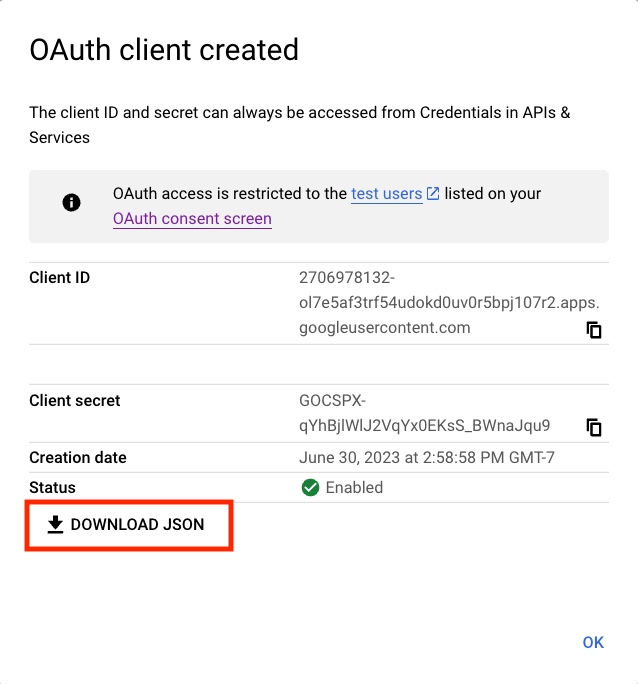
 * Click create and on the right hand side next to **Client secret**, there is an option to download the
credentials as a JSON. Download the JSON for use in the next step.
* Click create and on the right hand side next to **Client secret**, there is an option to download the
credentials as a JSON. Download the JSON for use in the next step.