> ## Documentation Index
> Fetch the complete documentation index at: https://docs.utopikai.com/llms.txt
> Use this file to discover all available pages before exploring further.
# FTP / SFTP / FTPS Connector
> Index files from remote file servers
## Overview
The FTP / SFTP / FTPS connector indexes documents stored on remote file servers. Use it to bring files from legacy or internal file shares into UtopikAI search.
Supported protocols:
| Protocol | Description | Default port |
| -------- | ---------------------------------------- | ------------ |
| **SFTP** | SSH File Transfer Protocol (recommended) | 22 |
| **FTPS** | FTP over TLS/SSL | 21 |
| **FTP** | Standard FTP (unencrypted) | 21 |
**SFTP** is the recommended secure option. SFTP credentials require **host key verification** before they can be saved.
## How it works
The connector connects to your remote server, reads files from the paths you configure, and indexes supported document types for search. After the initial sync, UtopikAI re-fetches content on the connector's refresh schedule to keep answers up to date.
## Setting up
### Add the connector
1. Open **Admin** → **Connectors** → **Add Connector**.
2. Under **Storage**, select **FTP / SFTP / FTPS**.
3. Create or select a credential (see below).
4. Configure the remote paths or folders to index.
5. Save the connector to start indexing.
### Create a credential
Before indexing, create a credential for your file server:
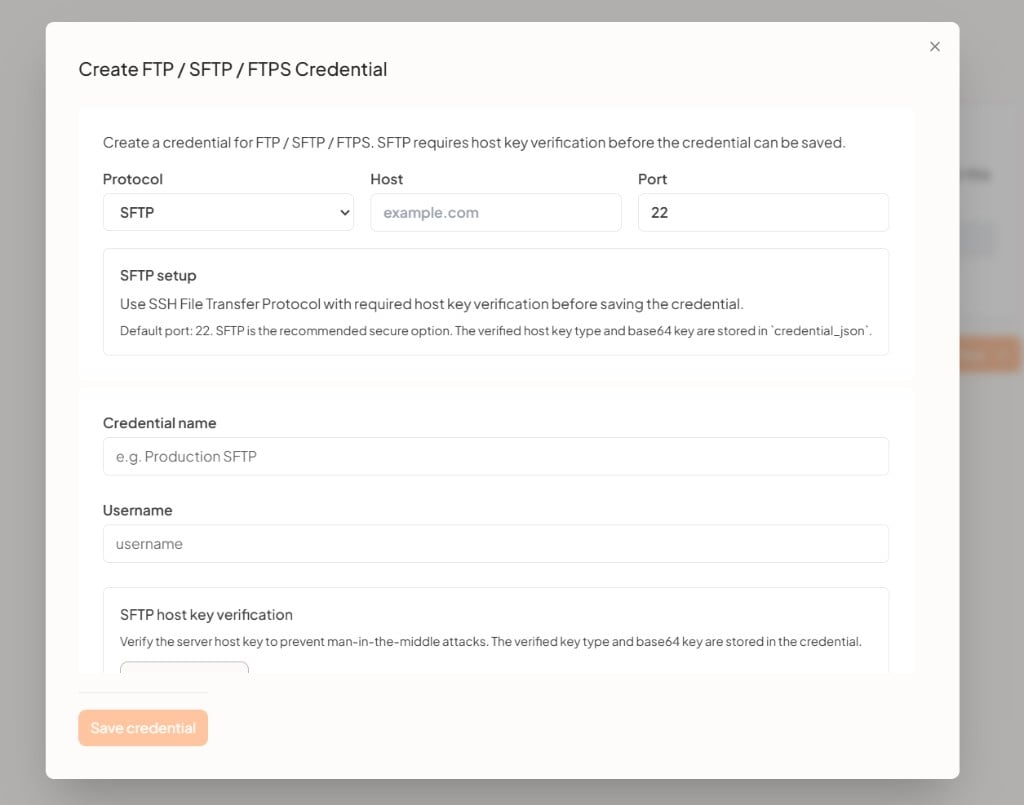
1. In the connector setup flow, open **Create FTP / SFTP / FTPS Credential**.
2. Choose a **Protocol** — **SFTP**, **FTPS**, or **FTP**.
3. Enter the server **Host** (for example `example.com`) and **Port** (defaults to `22` for SFTP).
4. Provide a **Credential name** (for example `Production SFTP`) and **Username**.
5. Complete any protocol-specific steps below, then click **Save Credential**.
 #### SFTP host key verification
When using **SFTP**, you must verify the server's host key before the credential can be saved. This prevents man-in-the-middle attacks.
1. Enter the host, port, and username.
2. Run **host key verification** against the server.
3. Confirm the displayed key matches your server's known host key.
4. The verified key type and base64-encoded key are stored in the credential configuration.
Do not save an SFTP credential until host key verification succeeds. The **Save Credential** button remains disabled until verification is complete.
#### FTPS and FTP
* **FTPS** — Uses FTP over TLS/SSL. Provide the host, port (typically `21`), username, and password when prompted.
* **FTP** — Standard unencrypted FTP. Use only on trusted networks; prefer SFTP or FTPS for production environments.
### Indexing
1. Select the credential you created.
2. Specify the **remote paths** or directories to index (for example `/data/docs` or `/shared/knowledge`).
3. Optionally narrow indexing with include/exclude rules if your deployment supports them.
4. Save the connector.
UtopikAI indexes supported file types from the selected paths. Unsupported or inaccessible files are skipped.
## Supported file types
The connector indexes common document formats including PDF, DOC, DOCX, TXT, MD, CSV, and other text-based files supported by your UtopikAI deployment. Binary or unsupported formats may be ignored during indexing.
## Troubleshooting
| Issue | What to check |
| ---------------------------- | ------------------------------------------------------------------------------------ |
| Credential won't save (SFTP) | Complete host key verification first |
| Connection refused | Host, port, firewall rules, and that the server allows your UtopikAI deployment's IP |
| Authentication failed | Username, password or key, and account permissions on the remote server |
| No documents indexed | Remote path exists, files are readable, and formats are supported |
For enterprise setup help, contact [support@utopikai.com](mailto:support@utopikai.com).
#### SFTP host key verification
When using **SFTP**, you must verify the server's host key before the credential can be saved. This prevents man-in-the-middle attacks.
1. Enter the host, port, and username.
2. Run **host key verification** against the server.
3. Confirm the displayed key matches your server's known host key.
4. The verified key type and base64-encoded key are stored in the credential configuration.
Do not save an SFTP credential until host key verification succeeds. The **Save Credential** button remains disabled until verification is complete.
#### FTPS and FTP
* **FTPS** — Uses FTP over TLS/SSL. Provide the host, port (typically `21`), username, and password when prompted.
* **FTP** — Standard unencrypted FTP. Use only on trusted networks; prefer SFTP or FTPS for production environments.
### Indexing
1. Select the credential you created.
2. Specify the **remote paths** or directories to index (for example `/data/docs` or `/shared/knowledge`).
3. Optionally narrow indexing with include/exclude rules if your deployment supports them.
4. Save the connector.
UtopikAI indexes supported file types from the selected paths. Unsupported or inaccessible files are skipped.
## Supported file types
The connector indexes common document formats including PDF, DOC, DOCX, TXT, MD, CSV, and other text-based files supported by your UtopikAI deployment. Binary or unsupported formats may be ignored during indexing.
## Troubleshooting
| Issue | What to check |
| ---------------------------- | ------------------------------------------------------------------------------------ |
| Credential won't save (SFTP) | Complete host key verification first |
| Connection refused | Host, port, firewall rules, and that the server allows your UtopikAI deployment's IP |
| Authentication failed | Username, password or key, and account permissions on the remote server |
| No documents indexed | Remote path exists, files are readable, and formats are supported |
For enterprise setup help, contact [support@utopikai.com](mailto:support@utopikai.com).