> ## Documentation Index
> Fetch the complete documentation index at: https://docs.utopikai.com/llms.txt
> Use this file to discover all available pages before exploring further.
# Freshdesk Connector
> Access knowledge from your Freshdesk Tickets
## How it works
The Freshdesk connector indexes tickets from your Freshdesk account.
## Setting up
### Authorization
1. Login to Freshdesk
* The Freshdesk user must be a verified agent, admin, or owner.
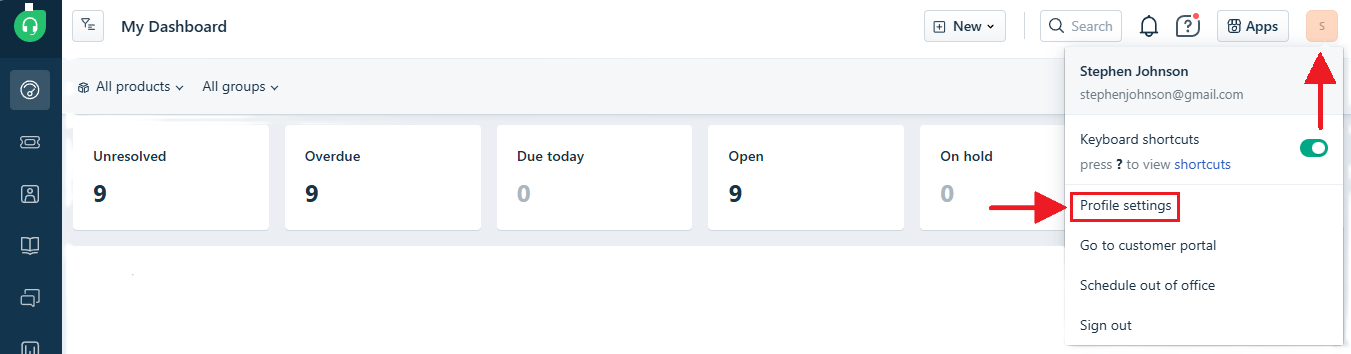
2. Click the profile avatar and choose profile settings.
 3. Select **View API Key**.
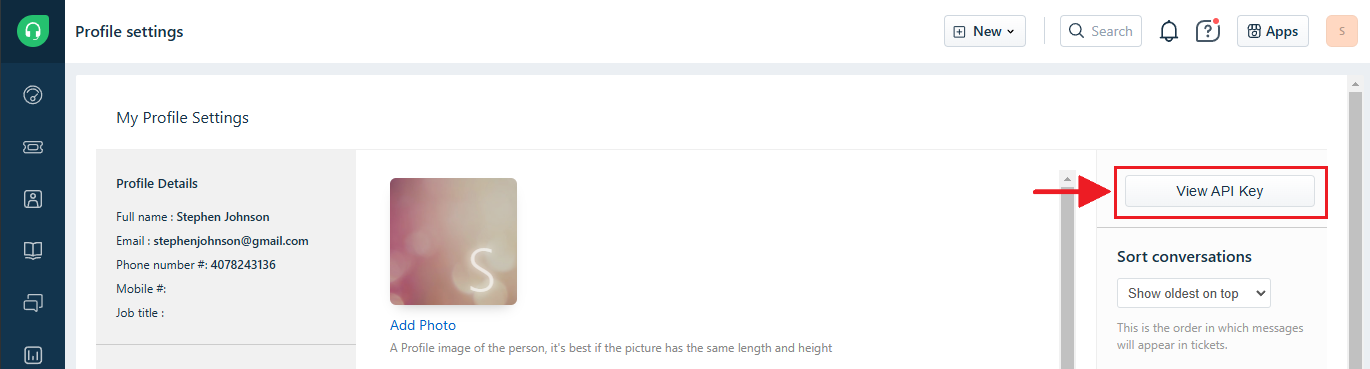 5. Once you have the API key, you can use it (as well as your domain and password) to authorize your UtopikAI connector.
### Indexing
1. Navigate to the Admin Dashboard.
2. In the sidebar select **Add Connector** and click on the **Freshdesk** tile.
3. Select **Create New** and then provide your **Domain**, **Password** and **API Key**, along with an optional name for your credentials.
4. Click **Create** and your credentials will be saved and automatically selected.
5. After selecting **Continue** you can choose a name for your connector and then click **Create Connector**.
6. Once you have created your connector UtopikAI will automatically begin indexing your tickets.
5. Once you have the API key, you can use it (as well as your domain and password) to authorize your UtopikAI connector.
### Indexing
1. Navigate to the Admin Dashboard.
2. In the sidebar select **Add Connector** and click on the **Freshdesk** tile.
3. Select **Create New** and then provide your **Domain**, **Password** and **API Key**, along with an optional name for your credentials.
4. Click **Create** and your credentials will be saved and automatically selected.
5. After selecting **Continue** you can choose a name for your connector and then click **Create Connector**.
6. Once you have created your connector UtopikAI will automatically begin indexing your tickets.